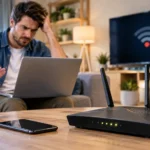

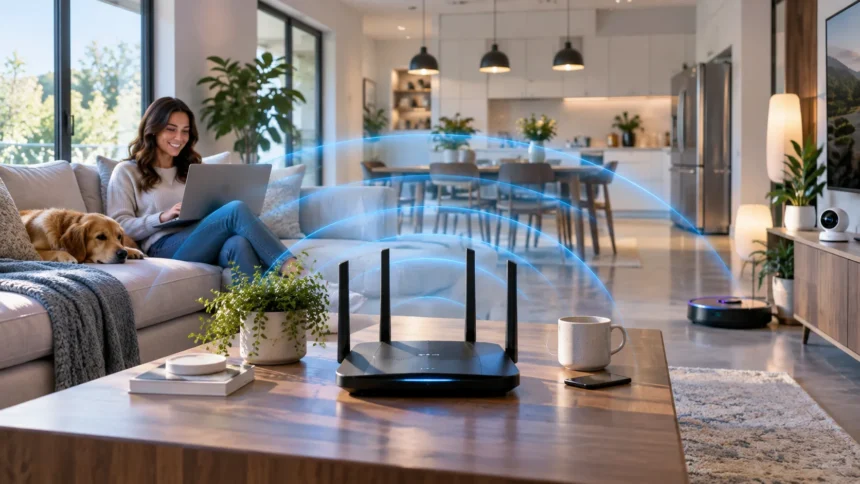
A weak Wi-Fi signal can make everyday online activities frustrating, from video calls and streaming to gaming and browsing. Slow loading, frequent disconnections, and dead zones often happen because the wireless signal cannot reach your devices effectively. Fortunately, several practical changes can improve Wi-Fi signal strength without immediately replacing your entire home network.
Improving wireless coverage usually starts with understanding router placement, interference, frequency bands, and the number of connected devices. Small adjustments can sometimes create a noticeable improvement in both speed and stability. By working through the most common causes step by step, you can build a stronger and more reliable Wi-Fi connection throughout your home.
What Affects Wi-Fi Signal Strength?
Wi-Fi performance depends heavily on the distance between your device and the wireless router. Radio signals naturally become weaker as they travel farther, especially when they must pass through walls, furniture, ceilings, and other obstacles. Devices located close to the router usually receive a stronger signal than phones, laptops, or smart TVs positioned several rooms away.
Building materials can also have a significant effect on wireless coverage. Thick concrete walls, metal surfaces, brick, mirrors, and reinforced structures may absorb or reflect Wi-Fi signals before they reach another room. A router placed behind furniture or inside a cabinet can therefore perform much worse than the same router positioned openly in a central location.
Interference from neighboring networks and household electronics can create additional problems. Bluetooth devices, cordless phones, microwaves, wireless cameras, and nearby routers may compete for similar frequencies. Understanding these limitations makes it easier to determine whether your problem comes from poor router placement, wireless interference, network congestion, or outdated equipment.
Place Your Router in a Central Location
Router placement is one of the easiest ways to improve Wi-Fi signal strength without spending money on new equipment. Position the router as close as possible to the center of the area where internet access is required. A central location allows the wireless signal to spread more evenly instead of wasting much of its coverage outside your home.
Avoid placing your router in corners, basements, closed cupboards, or behind large furniture whenever possible. These locations may restrict how effectively radio waves travel into nearby rooms. An open shelf, desk, or elevated position can usually provide better wireless coverage than placing the router close to the floor or hiding it for appearance purposes.
Think about where your most important devices are located before choosing the final router position. Home offices, gaming setups, televisions, and frequently used bedrooms may need stronger coverage than storage areas or unused spaces. Moving the router even a few feet toward these high-use areas can sometimes improve Wi-Fi reception noticeably without requiring additional hardware.
Keep the Router Away From Obstacles and Interference
Large physical obstacles between your router and devices can weaken Wi-Fi signals considerably. Thick walls, metal cabinets, refrigerators, concrete floors, and large mirrors are particularly likely to reduce wireless coverage. Try to create a relatively open path between the router and the areas where you regularly use laptops, phones, tablets, and other connected devices.
Electronic devices can also interfere with certain wireless frequencies. Microwave ovens, baby monitors, Bluetooth accessories, cordless phones, and wireless security equipment may create temporary interference, especially on the 2.4 GHz band. Moving the router away from these electronics can help reduce signal disruption and provide a more stable internet connection.
You should also avoid placing the router directly next to televisions, desktop computers, power supplies, or other large electronic equipment. Even if these devices do not completely block the signal, they can contribute to congestion or electrical interference. A little separation between networking equipment and other electronics can make your wireless environment cleaner and more reliable.
Choose the Right Wi-Fi Frequency Band
Modern routers commonly offer 2.4 GHz and 5 GHz Wi-Fi, while newer models may also support the 6 GHz band. The 2.4 GHz frequency generally travels farther and passes through walls more effectively, making it useful for devices located farther from the router. However, it is often more crowded because many household and wireless devices use similar frequencies.
The 5 GHz band generally provides faster wireless speeds and experiences less interference than 2.4 GHz. Its main limitation is shorter range, particularly when several walls separate your device from the router. It works especially well for laptops, gaming systems, smart TVs, and streaming devices located relatively close to the wireless access point.
Wi-Fi 6E and Wi-Fi 7 equipment may provide access to the 6 GHz band, which offers additional wireless spectrum and potentially less congestion. However, its coverage is generally shorter than lower frequencies, and compatible devices are required. Choosing the appropriate band based on distance and device requirements can significantly improve wireless performance without changing your internet plan.
Change Your Wi-Fi Channel
Wi-Fi networks communicate through different wireless channels, and congestion can occur when several nearby routers use the same channel. This problem is particularly common in apartments, offices, and densely populated neighborhoods where many networks operate within a small area. Heavy channel congestion can reduce speeds, create connection instability, and make your Wi-Fi feel weaker than expected.
Most modern routers automatically choose a suitable channel, but automatic selection does not always provide the best results. You can access your router’s administration settings and review the available wireless channel options. On the 2.4 GHz band, channels 1, 6, and 11 are commonly preferred because they avoid overlapping with one another when configured correctly.
The 5 GHz and 6 GHz bands provide more available channels, which can reduce competition from nearby networks. Some routers include built-in tools that automatically analyze wireless conditions and choose a less congested channel. Experimenting carefully with channel settings can improve signal stability, especially when your Wi-Fi works well during quiet periods but becomes unreliable when nearby networks are busy.
Update Your Router and Firmware
Older routers may struggle to provide strong coverage when many modern devices are connected simultaneously. Newer wireless standards such as Wi-Fi 6 and Wi-Fi 7 offer improvements in efficiency, capacity, and performance compared with much older equipment. If your router has been in use for many years, hardware limitations may be contributing to weak or inconsistent wireless coverage.
Before replacing your router, check whether a firmware update is available from the router manufacturer. Firmware updates can improve performance, stability, compatibility, and security while correcting technical problems found after the device was released. Some routers install updates automatically, while others require you to log into the administration dashboard and start the update manually.
Restarting networking equipment periodically may also resolve temporary connectivity problems. Power down the router according to the manufacturer’s instructions, wait briefly, and allow it to reconnect completely before testing your Wi-Fi again. Restarting will not solve fundamental range limitations, but it can clear temporary software issues that sometimes cause unstable connections or reduced wireless performance.
Manage Connected Devices and Network Traffic
Every device connected to your home network uses some amount of available bandwidth. Smartphones, computers, televisions, security cameras, gaming systems, smart speakers, and home automation devices can create substantial network demand when operating simultaneously. Heavy traffic may make the connection feel weak even when your device technically has a strong Wi-Fi signal.
Check your router’s connected-device list to understand how many devices are using the network. Remove unfamiliar devices and disconnect older equipment that no longer needs internet access. Some modern routers also include Quality of Service settings that allow you to prioritize important activities such as video conferencing, gaming, streaming, or work-related applications.
It is also useful to distinguish weak Wi-Fi reception from limited internet speed. A device can show excellent wireless signal strength while still experiencing slow downloads because your broadband connection is congested or limited. Understanding this difference prevents unnecessary router changes when the real issue may involve internet bandwidth, background downloads, or unusually heavy network usage.
Use a Wi-Fi Extender or Mesh Network
Large homes and multi-story buildings sometimes require additional hardware because a single router cannot provide strong coverage everywhere. A Wi-Fi range extender receives your existing wireless signal and rebroadcasts it into areas with poor reception. Extenders can be affordable solutions for individual dead zones, although performance depends heavily on where the extender is positioned.
A mesh Wi-Fi system is often better suited to larger spaces that need consistent wireless coverage across several rooms or floors. Mesh systems use multiple access points, commonly called nodes, that work together as one network. Devices can move between coverage areas more smoothly, making mesh networking useful for homes with complicated layouts or persistent Wi-Fi dead zones.
Whatever solution you choose, avoid placing an extender or mesh node directly inside a dead zone. The device needs to receive a reasonably strong signal before it can distribute that connection effectively. Positioning additional access points roughly between the main router and the weak-coverage area usually produces better results than installing them at the farthest possible location.
Secure Your Wi-Fi Network
An unsecured or poorly protected Wi-Fi network may allow unauthorized users to consume your bandwidth. Extra devices can increase network congestion and reduce available internet capacity for legitimate users. Protect your wireless network with a strong password and use modern security standards such as WPA2 or WPA3 whenever your router and connected devices support them.
Change the router’s default administrator password as well, particularly if you have never updated it since installation. Default credentials can create unnecessary security risks and may allow someone to change important network settings. Keeping control of your router configuration helps protect both your wireless performance and the devices connected to your home network.
Regularly reviewing the connected-device list can also reveal equipment you no longer recognize. Many router apps display the device name, connection type, and current network activity, making unusual connections easier to identify. A secure network does not directly increase radio signal strength, but preventing unauthorized bandwidth use can make your overall Wi-Fi experience faster and more dependable.
Troubleshoot Weak Wi-Fi Room by Room
If Wi-Fi is poor only in certain rooms, test your connection at several points around the house. Start near the router, then gradually move farther away while observing signal bars, speed, and connection stability. This simple process can reveal where coverage starts dropping and whether walls, floors, distance, or electronics are likely contributing to the problem.
Compare Wi-Fi performance on more than one device before assuming the router is responsible. A single laptop or smartphone may have an older wireless adapter, outdated drivers, or device-specific configuration problems. If every device performs poorly in the same location, however, the problem is more likely related to wireless coverage or interference within that particular area.
Signal problems can also overlap with general internet-speed issues, so troubleshooting both is useful. If your connection remains sluggish even when you are close to the router, follow practical steps to fix slow Wi-Fi and identify whether congestion, router settings, or broadband performance may be contributing. Separating speed problems from coverage problems makes troubleshooting much more effective.
Improve Wi-Fi Performance for Gaming and Streaming
Gaming and high-resolution streaming require more than simply having several Wi-Fi signal bars. Stable latency, consistent bandwidth, and minimal interference are especially important when playing online games, watching 4K video, or participating in live video calls. Whenever possible, position these high-demand devices close to the router or a mesh access point.
Use the 5 GHz or 6 GHz band for compatible devices that are close enough to receive a strong signal. These frequencies can provide higher wireless throughput and may encounter less interference than crowded 2.4 GHz networks. However, a strong 2.4 GHz connection may still perform better than a weak 5 GHz connection when the device is located farther away.
For devices that require maximum stability, consider using a wired Ethernet connection when practical. Ethernet removes many variables associated with wireless distance and interference and is particularly useful for desktop computers, gaming consoles, and smart televisions. Reducing heavy wireless traffic on these devices can also leave more Wi-Fi capacity available for phones, tablets, and portable equipment.
Maintain Strong Wi-Fi Over Time
Wireless performance can change as you add devices, move furniture, install new electronics, or neighboring networks become more crowded. Test your Wi-Fi occasionally in the rooms where reliable coverage matters most. A location that worked perfectly when your router was first installed may become less effective as your home network and surrounding wireless environment change.
Keep router firmware updated and review network settings whenever you experience an unexplained performance drop. Restart equipment when needed and check whether newly connected devices are consuming unusually large amounts of bandwidth. Basic network maintenance can prevent small problems from becoming persistent issues that affect everyone using the connection.
You should also reconsider your network design when moving into a larger property or substantially increasing the number of smart devices in your home. A single older router may eventually become insufficient even if it once worked well. Upgrading strategically to newer equipment or mesh networking can provide better long-term coverage than repeatedly trying temporary fixes.
Conclusion
Improving Wi-Fi signal strength often begins with simple changes rather than expensive hardware. Moving your router to a central, elevated location, reducing obstacles, and keeping it away from interfering electronics can improve wireless coverage significantly. Selecting the correct frequency band and reducing channel congestion can further increase reliability throughout your home.
If these adjustments do not provide enough coverage, consider updating router firmware, controlling network traffic, or adding an extender or mesh Wi-Fi system. Large buildings and multi-story homes may simply require multiple access points to eliminate dead zones. The best solution depends on your home layout, number of connected devices, and internet usage habits.
Regular testing makes it easier to distinguish a weak Wi-Fi signal from a slow broadband connection or overloaded network. Work through the possible causes systematically instead of changing several settings at once. With thoughtful router placement, appropriate equipment, and basic maintenance, you can create faster, stronger, and more dependable Wi-Fi coverage.
FAQs
Why is my Wi-Fi signal weak even near the router?
Interference, outdated router firmware, crowded wireless channels, or hardware problems can weaken performance even at close range. Restart the router, check for updates, and test different devices to identify the likely cause.
Does moving a router higher improve Wi-Fi?
Yes, placing the router higher can often improve coverage because furniture and other obstacles are less likely to block the wireless signal. An elevated, open, and central position usually works better than placing it on the floor.
Is 2.4 GHz or 5 GHz better for Wi-Fi range?
The 2.4 GHz band generally provides better range and wall penetration, while 5 GHz usually offers faster speeds over shorter distances. Choose the band based on your device’s distance from the router.
Do Wi-Fi extenders really improve signal strength?
Wi-Fi extenders can improve coverage in specific dead zones when positioned correctly. They work best when placed where they can still receive a strong connection from the main router rather than inside the weakest area.
When should I upgrade my Wi-Fi router?
Consider upgrading if your router is several years old, lacks modern Wi-Fi standards, frequently disconnects, or cannot handle your growing number of devices. Newer equipment may provide better coverage, capacity, and network efficiency.