

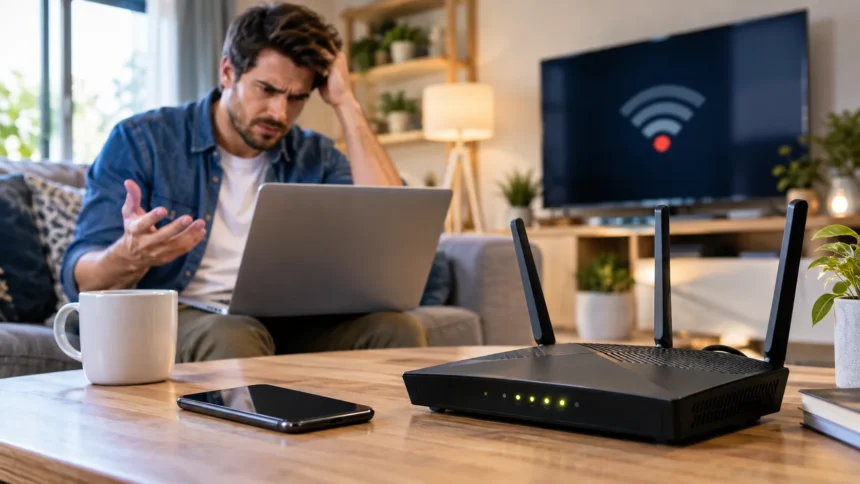
Slow Wi-Fi can make even simple online tasks frustrating. Video calls start freezing, streaming buffers, websites load slowly, and smart devices may lose their connection without warning. The problem is not always your internet plan because router placement, interference, outdated equipment, and network congestion can all reduce wireless performance inside your home.
Fortunately, many Wi-Fi speed problems can be diagnosed without advanced technical knowledge. By checking your internet speed, improving router placement, reducing interference, and reviewing connected devices, you can often restore a faster and more reliable connection. The key is identifying whether the slowdown comes from your internet provider, your router, or the wireless network inside your home.
Why Is My Wi-Fi So Slow?
Slow Wi-Fi can happen for several reasons, and the cause is not always obvious at first. Your internet service provider may be delivering lower speeds than expected, but weak wireless signals inside the house can create similar symptoms. Distance from the router, thick walls, network congestion, outdated hardware, and interference from other electronics can all reduce performance.
The number of connected devices can also influence network speed. Phones, laptops, smart TVs, gaming consoles, security cameras, and smart home devices may all use bandwidth at the same time. If several devices are streaming, downloading files, or installing updates, the available internet connection is divided among them, which can make individual devices feel slower.
Another possibility is that your Wi-Fi connection is fast enough but the website or service you are using is slow. A busy server, poorly optimized website, or large webpage can take longer to load even when your internet connection works normally. This is why testing several websites and applications is useful before assuming your home network is the problem.
Check Your Internet Speed First
Before changing router settings, perform an internet speed test on a device connected to your home network. Compare the download and upload speeds with the plan you are paying for through your internet service provider. Testing gives you a useful baseline and helps determine whether your connection is consistently slow or only experiencing temporary performance problems.
Run the test from different areas of your home to compare Wi-Fi performance. Test once while standing close to the router and again from a room where the connection normally feels slow. If speeds are strong near the router but drop dramatically farther away, the issue is more likely related to wireless coverage rather than your broadband connection.
For an even clearer comparison, connect a laptop directly to the router using an Ethernet cable if possible. A strong wired speed combined with weak wireless performance usually points toward a Wi-Fi problem. If both wired and wireless connections are much slower than your subscribed plan, your modem, service provider, or internet line may require further troubleshooting.
Restart Your Router and Modem
Restarting network equipment is one of the simplest ways to troubleshoot slow home Wi-Fi. Routers and modems run continuously for long periods and may occasionally develop temporary software, memory, or connection issues. A proper restart clears many of these problems and allows the devices to establish a fresh connection with your internet provider.
Turn off your router and modem, unplug them from power, and leave them disconnected for around 30 to 60 seconds. Connect the modem first and allow it to fully reconnect before turning the router back on. Waiting for each device to finish its startup process can help avoid connection problems while the network is being re-established.
After both devices are online, perform another speed test and compare the results with your earlier measurement. If performance improves significantly, the slowdown may have resulted from a temporary router or modem issue. Restarting equipment regularly is not always necessary, but it can be an effective first step whenever your connection suddenly becomes unusually slow.
Move Your Router to a Better Location
Router placement has a major effect on Wi-Fi coverage throughout a home. Wireless signals weaken as they travel through walls, floors, furniture, and other physical obstacles. Placing the router in a central, open location can help distribute the signal more evenly and reduce dead zones in rooms that previously experienced slow or unstable connections.
Avoid placing the router inside cabinets, behind large furniture, or in a corner of the house. A router positioned low to the ground or surrounded by dense objects may struggle to send a strong signal across multiple rooms. Raising it onto a shelf or table and keeping the surrounding area relatively clear can often improve wireless coverage.
You should also avoid placing routers close to large metal objects or appliances whenever possible. Refrigerators, filing cabinets, mirrors, and thick concrete structures can weaken or reflect wireless signals. Moving the router even a few feet may sometimes produce a noticeable improvement, especially when the current location creates several physical barriers between the router and your devices.
Reduce Wi-Fi Interference
Wi-Fi signals can be affected by electronic devices that operate on similar frequencies. Microwave ovens, cordless phones, Bluetooth devices, baby monitors, and neighboring wireless networks may contribute to interference, particularly on the 2.4 GHz frequency band. This interference can reduce network speed, increase latency, or cause occasional connection drops.
Moving the router away from electronics is one practical way to reduce interference. You can also experiment with different wireless channels through your router settings if nearby networks are heavily using the same channel. Many modern routers automatically choose channels, but manual adjustment may occasionally improve performance in crowded apartment buildings or densely populated neighborhoods.
The 5 GHz and 6 GHz bands can also help reduce congestion when supported by your router and devices. These frequencies usually provide faster speeds and experience less interference than 2.4 GHz, although their range through walls is shorter. Choosing the appropriate band based on distance and device location can create a more efficient home wireless network.
Use the Right Wi-Fi Frequency Band
Most modern routers support at least two Wi-Fi frequency bands: 2.4 GHz and 5 GHz. The 2.4 GHz band provides longer range and generally performs better through walls, making it useful for devices located farther from the router. However, it is often more crowded and usually offers lower maximum speeds than 5 GHz.
The 5 GHz band usually delivers faster speeds when devices are relatively close to the router. It is a good option for streaming, online gaming, video conferencing, and large downloads when strong signal coverage is available. Because its signal does not travel through obstacles as effectively, performance may decline more quickly as you move farther away.
Some newer routers also support 6 GHz through Wi-Fi 6E or Wi-Fi 7 technology. This band can provide additional capacity and less congestion for compatible devices, but its coverage range is relatively limited. Allowing your router to automatically manage bands can work well, although manually choosing the most suitable band may improve performance in certain situations.
Disconnect Unnecessary Devices
Every connected device can contribute to network usage, even when you are not actively using it. Smartphones may upload photos, computers may download software updates, and smart TVs can perform background tasks. Security cameras and cloud-connected devices may continuously send data, reducing the bandwidth available for activities that require faster or more stable connections.
Check your router’s administration page or companion app to see which devices are currently connected. Disconnect devices you no longer use, especially older phones, tablets, smart appliances, or guest devices that remain connected unnecessarily. Removing inactive devices will not always create a dramatic speed increase, but it can reduce network congestion and make your setup easier to manage.
If an unknown device appears on your network, change your Wi-Fi password and reconnect only trusted devices. Unauthorized users can consume bandwidth and create a potential security concern. Use a strong password and modern wireless security such as WPA2 or WPA3 to help prevent unwanted access to your home network.
Update Your Router Firmware
Router manufacturers occasionally release firmware updates that improve performance, security, stability, and compatibility with newer devices. An outdated router may experience connection problems that have already been fixed in a newer software version. Checking for updates is therefore an important troubleshooting step when Wi-Fi performance remains inconsistent despite basic adjustments.
Many modern routers can update their firmware automatically through a mobile app or web-based administration panel. If automatic updates are unavailable, you may need to check the manufacturer’s instructions for your specific model. Always follow the correct update process because interrupting a firmware installation can potentially cause problems with the router.
After installing an update, restart the router and test the network again. Firmware updates may improve wireless efficiency, fix bugs, or introduce better support for technologies such as Wi-Fi 6. Keeping network equipment updated also strengthens security by addressing known vulnerabilities that could otherwise remain exposed for long periods.
Change Your Wi-Fi Channel
Wi-Fi channels are smaller sections within each wireless frequency band that routers use to communicate with devices. When several nearby networks operate on the same or overlapping channels, congestion can occur. This problem is especially common in apartment buildings, offices, or neighborhoods where many routers are located relatively close together.
Some routers automatically scan nearby networks and choose a less congested channel. Others allow you to manually select one through the router’s settings page. On the 2.4 GHz band, channels 1, 6, and 11 are commonly used because they do not overlap with one another in many standard configurations.
Changing channels does not guarantee faster speeds, but it can help when interference from neighboring networks is significant. Test your connection before and after making adjustments rather than assuming a different channel will always perform better. If your router supports automatic channel optimization, leaving that feature enabled may be the easiest long-term approach.
Improve Wi-Fi Coverage in Large Homes
A single router may struggle to provide reliable coverage throughout a large home, especially when multiple floors, thick walls, or long distances separate rooms. Devices located far from the router may receive a weak signal even if your internet plan provides excellent speeds. Improving coverage can therefore be more effective than upgrading your broadband package.
Wi-Fi extenders can increase coverage by repeating the router’s signal into areas where reception is weaker. They are relatively affordable but may reduce connection speed depending on how they communicate with the main router. Proper placement matters because an extender must receive a reasonably strong signal before it can effectively rebroadcast that connection farther into the home.
Mesh Wi-Fi systems are another option for larger properties. They use several coordinated access points to create broader and more consistent wireless coverage across different rooms or floors. A mesh system can be particularly useful when you regularly move between areas of the house and want devices to connect automatically to the strongest available access point.
Use Ethernet for High-Bandwidth Devices
Wireless connections offer convenience, but Ethernet generally provides greater stability and lower latency. Devices that remain in one location, such as desktop computers, gaming consoles, smart TVs, or network storage systems, can often benefit from a wired connection. Moving these devices off Wi-Fi also reduces the amount of wireless traffic competing for available bandwidth.
Ethernet can be especially helpful for online gaming, large downloads, high-resolution streaming, and important video calls. A wired connection avoids many of the interference and signal-strength problems associated with Wi-Fi. If your internet speed is strong through Ethernet but consistently poor over wireless, the issue clearly points toward your Wi-Fi setup rather than the broadband service itself.
Wired connections can also make the overall home network more efficient. For example, moving a television and gaming console onto Ethernet leaves additional wireless capacity for smartphones and laptops. Combining wired and wireless connections based on how each device is used can provide a more reliable experience than forcing every device onto Wi-Fi.
Check Background Downloads and Bandwidth Usage
Slow internet may sometimes result from a single device consuming a large portion of your available bandwidth. Cloud backups, software updates, game downloads, video uploads, and file synchronization can continue quietly in the background. These processes may cause streaming, browsing, or video calls on other devices to become noticeably slower.
Check laptops, phones, gaming consoles, and cloud storage applications for active downloads or uploads. Pause unnecessary transfers temporarily and run another speed test. If network performance improves immediately, you have probably identified a major source of congestion rather than a problem with your router or internet provider.
Some routers include Quality of Service, or QoS, settings that allow you to prioritize particular devices or activities. For example, you may prioritize work video calls over large game downloads. These settings can help manage limited bandwidth more effectively, although configuration options vary considerably between different router models.
Upgrade an Old Router If Necessary
Older routers may not be capable of handling modern internet speeds or large numbers of connected devices. A router designed many years ago might support older Wi-Fi standards with lower throughput and less efficient traffic management. Even if it still works, the hardware itself can become the bottleneck preventing you from using the full speed of your internet plan.
Upgrading to a router that supports Wi-Fi 6 or newer technology can improve capacity, efficiency, and performance when compatible devices are connected. Newer routers are designed to manage multiple simultaneous connections more effectively. However, upgrading makes the most sense when your existing hardware is genuinely limiting performance rather than simply being poorly positioned.
Technology performance is often influenced by both infrastructure and optimization. The same principle applies to websites, where efficient development tools such as modern CSS frameworks can help streamline design workflows and improve development efficiency. For home networking, choosing equipment that matches your speed requirements helps prevent unnecessary performance limitations.
Know When to Contact Your Internet Provider
If your wired internet speed remains significantly below the level promised by your service plan, the issue may exist outside your home Wi-Fi network. Problems with your broadband line, modem provisioning, neighborhood infrastructure, or provider equipment can all affect performance. In these situations, changing router placement or wireless settings may not solve the underlying problem.
Document your speed test results before contacting your internet provider. Run tests at different times of day and, if possible, record results from a device connected directly through Ethernet. Providing clear information can help technical support distinguish between a Wi-Fi problem and a problem with the actual internet connection entering your home.
You should also contact your provider if the internet frequently disconnects, your modem displays unusual warning lights, or speeds remain poor after restarting and troubleshooting your equipment. The provider may remotely test your connection, reset equipment, replace a faulty modem, or arrange a technician visit if the issue requires physical inspection.
Conclusion
Slow Wi-Fi at home can result from many different factors, including weak signal strength, poor router placement, interference, excessive device usage, outdated equipment, and internet provider problems. Testing your connection before making major changes helps identify where the slowdown begins. Comparing wired and wireless speeds is particularly useful for separating broadband issues from Wi-Fi problems.
Simple changes can often produce noticeable improvements. Restarting network equipment, relocating the router, choosing the right frequency band, reducing interference, disconnecting unnecessary devices, and updating firmware are practical troubleshooting steps. Larger homes may benefit from mesh Wi-Fi systems, while stationary devices can often achieve better performance through Ethernet connections.
If these adjustments do not improve your connection, your router or broadband service may be limiting performance. Upgrading outdated equipment or contacting your internet service provider may then be appropriate. A well-configured home network should provide consistent coverage, stable connections, and enough speed for the devices and online activities your household regularly uses.
FAQs
Why is my Wi-Fi slow even with fast internet?
Your internet plan may be fast while your wireless signal is weak. Distance from the router, walls, interference, outdated hardware, and network congestion can all reduce Wi-Fi speed before the connection reaches your device.
Where should I place my Wi-Fi router?
Place your router in a central, elevated, and open location whenever possible. Keep it away from thick walls, metal objects, large appliances, cabinets, and electronics that may interfere with the wireless signal.
Does restarting the router make Wi-Fi faster?
Restarting can resolve temporary software, memory, or connection problems that reduce performance. It will not increase the maximum speed of your internet plan, but it may restore normal speeds when equipment is behaving incorrectly.
Is 5 GHz Wi-Fi faster than 2.4 GHz?
Yes, 5 GHz usually offers faster speeds and less congestion than 2.4 GHz. However, 2.4 GHz generally provides better range and travels through walls more effectively, making it useful for devices farther from the router.
Should I buy a Wi-Fi extender or mesh system?
A Wi-Fi extender can work for a small coverage gap, while a mesh system is generally better suited to larger homes with multiple weak areas. Your home’s size, layout, budget, and existing equipment should guide the choice.