
Best Gadgets for Working from Home: Build a Smarter Home Office
Working from home can offer greater flexibility, fewer commutes and more control over your daily routine. However, productivity can quickly decline when you are working with a small laptop screen, an uncomfortable chair, unreliable internet or poor-quality audio during meetings.
The best gadgets for working from home solve practical problems rather than simply adding more technology to your desk. A useful home office gadget should improve comfort, remove distractions, reduce repetitive tasks or make communication with colleagues and clients easier.
You also do not need to purchase every remote work accessory at once. Start by identifying the biggest limitation in your current home office setup, such as neck discomfort, weak Wi-Fi, cable clutter, insufficient screen space or unclear video calls.
This guide explores the most useful home office gadgets for remote workers, freelancers, business owners and hybrid employees. It also explains what features matter, which upgrades should come first and how to avoid spending money on equipment you may not need.
1. An External Monitor for More Screen Space
An external monitor is one of the most valuable upgrades for anyone who spends several hours working on a laptop. The larger display makes it easier to compare documents, manage spreadsheets, edit content and keep communication tools open without constantly changing windows.
A 24-inch or 27-inch monitor is suitable for most home office setups. Full HD resolution may be enough for basic administrative work, while QHD or 4K resolution can provide sharper text and more workspace for designers, developers and professionals working with detailed visual content.
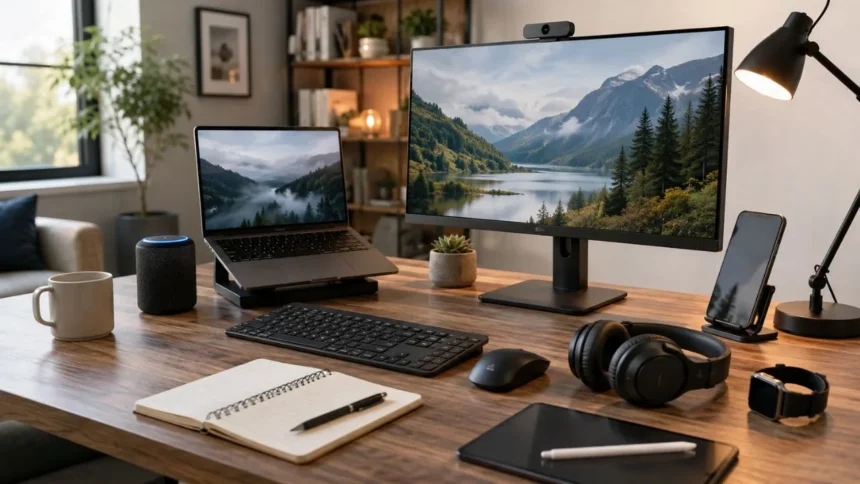
Look for an adjustable stand, anti-glare coating, suitable brightness and multiple connection options. Current productivity monitors may also include USB-C or Thunderbolt connectivity, laptop charging, Ethernet and built-in USB ports, allowing the monitor to function as a central home office hub.
Monitor placement is just as important as monitor quality. Position the display directly in front of you, keep the top of the screen around eye level and maintain a comfortable viewing distance to reduce unnecessary neck movement and awkward posture.
2. A USB-C Docking Station for Better Connectivity
Modern laptops are becoming thinner, but many provide fewer ports than remote workers need. A USB-C docking station can connect your monitor, keyboard, mouse, webcam, external storage, Ethernet cable and other home office accessories through a single laptop connection.
A good docking station reduces the time spent plugging and unplugging individual devices. You can arrive at your desk, connect one cable and immediately access your complete work-from-home setup, including external displays and wired internet.
Before buying a dock, check whether your laptop supports USB-C data transfer, DisplayPort Alt Mode, Thunderbolt or USB4. A USB-C port may look compatible while offering only basic charging or limited data capabilities, so reviewing your laptop specifications is important.
Choose a docking station based on the connections you actually use. HDMI, DisplayPort, Ethernet, USB-A, USB-C, SD card slots and power delivery are common features, but purchasing an oversized dock with unnecessary ports may increase cost without improving productivity.
3. An Ergonomic Keyboard and Mouse
Using a laptop keyboard for short tasks is convenient, but it may become uncomfortable during long working sessions. A separate wireless keyboard and mouse allow you to position your hands naturally while keeping the laptop or monitor at a healthier viewing height.
The best keyboard for working from home should feel comfortable, responsive and suitable for your daily workload. Writers may prefer quiet, low-profile keys, while programmers and heavy typists may value mechanical switches, programmable shortcuts or a split ergonomic design.
Your mouse should fit your hand comfortably without forcing your wrist into an awkward angle. Vertical mice, trackballs and sculpted ergonomic mice can be useful alternatives for people who experience discomfort with a traditional flat mouse.
Keep the keyboard and mouse close enough that your elbows remain near your body. Ergonomic equipment cannot correct poor placement, so frequently used accessories should remain directly in front of you with enough desk space for comfortable movement.
4. A Quality Webcam for Professional Video Calls
A dedicated webcam can noticeably improve your appearance during virtual meetings, interviews, webinars and client presentations. Compared with many built-in laptop cameras, an external webcam usually offers better positioning, clearer detail and more control over the image.
Most remote workers will be well served by a reliable 1080p webcam with autofocus and good low-light performance. A 4K webcam becomes more useful when you record videos, create online courses, crop your image or need a polished professional presentation.
Useful webcam features include adjustable field of view, automatic exposure, background controls, a privacy shutter and reliable software. Some advanced models provide 4K recording, high-frame-rate 1080p video, autofocus and different viewing-angle options.
Place the webcam close to eye level instead of leaving it at the bottom of the laptop screen. Looking toward a properly positioned camera creates a more natural angle and prevents viewers from seeing an unflattering upward view during important conversations.
5. A Desk Light or Video Call Light
Even an expensive webcam can produce disappointing results when your workspace is poorly lit. A small adjustable desk light or video call light can make your face appear clearer, reduce harsh shadows and create a more professional image.
Position the light in front of you and slightly above eye level. Avoid placing a bright window directly behind your chair because the camera may expose the window correctly while making your face appear dark.
A light with adjustable brightness and colour temperature provides greater control throughout the day. Warmer light can create a comfortable atmosphere, while neutral or cooler light may be more suitable for focused work and daytime meetings.
Lighting should also support visual comfort during screen-based work. Arrange your desk so that windows and strong light sources do not create distracting reflections or glare on the monitor, which may contribute to eye fatigue and uncomfortable viewing positions.
6. Noise-Cancelling Headphones or a Work Headset
Background conversations, traffic, appliances and household activity can make concentration difficult. Noise-cancelling headphones help create a more controlled working environment when you do not have access to a separate home office room.
For frequent meetings, choose headphones with a dependable microphone rather than focusing only on music quality. Clear voice pickup, comfortable ear cushions and stable wireless connectivity are especially important for people who spend several hours on calls.
Over-ear headphones generally provide greater isolation and longer listening comfort, while wireless earbuds are lighter and easier to carry. A headset with a visible boom microphone may be preferable for customer service, sales calls, online teaching and regular team meetings.
Consider whether the device supports multipoint connectivity, which allows it to remain connected to a computer and phone. Physical mute controls, adjustable transparency modes and replaceable ear cushions can also make a headset more convenient for everyday remote work.
7. A Laptop Stand for Better Screen Positioning
A laptop stand raises the computer screen closer to eye level, helping you avoid constantly looking downward. It is one of the simplest and most affordable work-from-home gadgets for improving the layout of a compact desk.
Adjustable stands are particularly useful because different users and desks require different heights. A strong aluminium or reinforced stand can provide better stability, while an open design may allow more airflow around the laptop.
Once a laptop is raised, using an external keyboard and mouse becomes essential. Typing directly on a highly elevated laptop can place your arms and wrists in an uncomfortable position, replacing one ergonomic problem with another.
A stand is also useful for video calls because it positions the laptop camera at a more natural angle. Remote workers with limited space can choose a foldable model that can be stored easily or carried between home and office.
8. A Mesh Wi-Fi System or Modern Router
A productive home office depends on a stable internet connection. Video calls, cloud applications, online collaboration tools and large file transfers can become frustrating when the Wi-Fi signal is weak or inconsistent.
Before replacing your internet plan, check whether the problem is caused by router placement or poor coverage. Moving the router into a central and open position may improve performance without requiring additional equipment.
Larger homes may benefit from a mesh Wi-Fi system that uses multiple units to extend coverage. Modern Wi-Fi 7 equipment can also support features such as Multi-Link Operation, although both the router and connected device must support compatible technology to receive its full benefits.
For the most important work devices, a wired Ethernet connection may still provide the most predictable performance. A USB-C dock with Ethernet can connect a thin laptop to the network even when the computer does not include a built-in Ethernet port.
9. A Multi-Port GaN Charger
Chargers for laptops, phones, tablets, headphones and other devices can quickly create desk clutter. A multi-port gallium nitride charger can replace several individual power adapters while occupying less space.
Choose a charger with enough total wattage for the most demanding device you plan to connect. A laptop may require considerably more power than a phone, and the available output may be divided when multiple devices are charged simultaneously.
A 100-watt multi-port charger can be a practical option for many home offices. Current compact models may include two USB-C ports and one USB-A port, allowing workers to power a laptop and smaller accessories from a single wall outlet.
Check that your charging cables support the required wattage and data standards. A powerful charger cannot deliver its maximum performance through a low-capacity cable, so compatible USB-C cables are an important part of the setup.
10. A UPS and Surge Protector for Power Protection
A surge protector helps protect valuable home office equipment from sudden voltage spikes. It can also provide additional outlets for monitors, chargers, speakers, routers and other devices used in a remote work setup.
A standard extension board and a surge protector are not always the same product. Look for clear surge-protection specifications, adequate outlet spacing and a trusted safety certification instead of choosing only by price.
A UPS, or uninterruptible power supply, provides temporary battery power when electricity is interrupted. It can keep a router, computer or monitor running long enough to save work, complete an urgent task or shut equipment down safely.
Choose the UPS capacity according to the total power consumption of the connected devices. High-power desktop computers and multiple monitors require more capacity, while a smaller unit may be sufficient for a router, modem and laptop charging system.
11. A Portable SSD for Fast and Secure Storage
Cloud storage is convenient, but an external solid-state drive provides fast local access to important files. It can be useful for video editors, designers, photographers and professionals who regularly work with large documents or media libraries.
Portable SSDs are generally smaller, quieter and faster than traditional external hard drives. Because they do not contain the same type of moving internal components, they are also better suited to frequent transportation between work locations.
Consider storage capacity, connection speed, durability and hardware encryption when selecting a drive. A high-speed USB-C connection is valuable only when the laptop, cable and drive all support compatible transfer speeds.
An external drive should support your backup strategy rather than become the only location where important files are stored. Keep critical work in more than one location, such as an encrypted local drive combined with secure cloud storage.
12. A Smart Speaker, Timer or Focus Device
Not every useful productivity gadget needs to connect directly to your computer. A smart speaker or voice assistant can set timers, create reminders, control lighting and provide quick information without interrupting your current screen.
A dedicated focus timer can help remote workers separate concentrated work from short recovery periods. It is particularly useful when household distractions make it difficult to maintain a consistent routine.
Visual timers are often more effective than phone timers because they do not encourage you to open social media or check notifications. Keeping the timer visible can also make the remaining work period feel more manageable.
These tools should support your routine rather than create more interruptions. Disable unnecessary alerts, promotional notifications and automatic announcements so the device contributes to a calm and focused workspace.
13. Cable Management Accessories
Loose charging cables and power cords can make even an expensive home office look disorganised. Cable clips, reusable ties, under-desk trays and labelled connections can keep important accessories accessible without covering the work surface.
Begin by removing cables and adapters that you no longer use. Organising unnecessary equipment still creates clutter, so simplify the setup before purchasing additional cable management products.
Attach frequently used charging cables near the edge of the desk so that they do not fall behind furniture. Longer cables can be routed underneath the desk, while excess length can be secured loosely without bending the wire sharply.
Good cable management also makes cleaning and troubleshooting easier. When every cable is labelled and routed clearly, you can replace a faulty accessory or disconnect equipment without disturbing the entire workstation.
How to Choose the Best Work-from-Home Gadgets
Start with the problem that affects your work most frequently. A larger monitor may provide more value than premium headphones when your main difficulty is switching between documents, while better networking equipment should come first if video calls regularly freeze.
Consider how many hours you use each item. Gadgets that affect your posture, vision, typing or communication deserve a larger share of the budget because small improvements can influence every working day.
Compatibility should be checked before any purchase. Confirm your operating system, available ports, power requirements, desk dimensions and software support rather than assuming every remote work accessory will function correctly.
Finally, avoid building a complicated workspace simply because certain gadgets are popular. The best home office setup is not the one with the most devices; it is the one that helps you work comfortably, communicate clearly and finish tasks with fewer interruptions.
Building a Productive Home Office Without Overspending
You can create an effective workspace gradually instead of purchasing a complete collection of gadgets in one order. Begin with essential ergonomic improvements and then add technology that addresses your personal workflow.
For many people, the best starting combination is a laptop stand, external keyboard, mouse and monitor. These accessories improve screen positioning, typing comfort and available workspace without requiring a complete computer replacement.
The next priorities are usually communication and reliability. A clear webcam, quality headset, stable internet connection and reliable power protection can prevent many of the problems that disrupt remote meetings and deadlines.
Review your setup every few months and remove anything that is no longer useful. A thoughtful selection of work-from-home gadgets can turn a temporary desk into a comfortable, organised and dependable professional workspace.
What are the most important gadgets for working from home?
An external monitor, ergonomic keyboard, comfortable mouse, webcam and quality headset are the most useful starting upgrades. Your internet equipment and power protection should also be reliable.
Is a second monitor worth it for remote work?
A second monitor can make multitasking easier by allowing you to view documents, meetings and communication tools at the same time. It is especially helpful for research, spreadsheets and creative work.
Do I need a docking station for my home office?
A docking station is useful when your laptop has limited ports or you regularly connect several accessories. It allows monitors, storage, Ethernet and peripherals to connect through one main cable.
Are noise-cancelling headphones good for working from home?
Noise-cancelling headphones can reduce distractions from traffic, conversations and household activity. Choose a comfortable model with a reliable microphone when you frequently attend online meetings.
How much should I spend on a work-from-home setup?
The right budget depends on your existing equipment and daily responsibilities. Invest first in items that improve comfort, internet reliability and communication rather than purchasing unnecessary premium gadgets.