

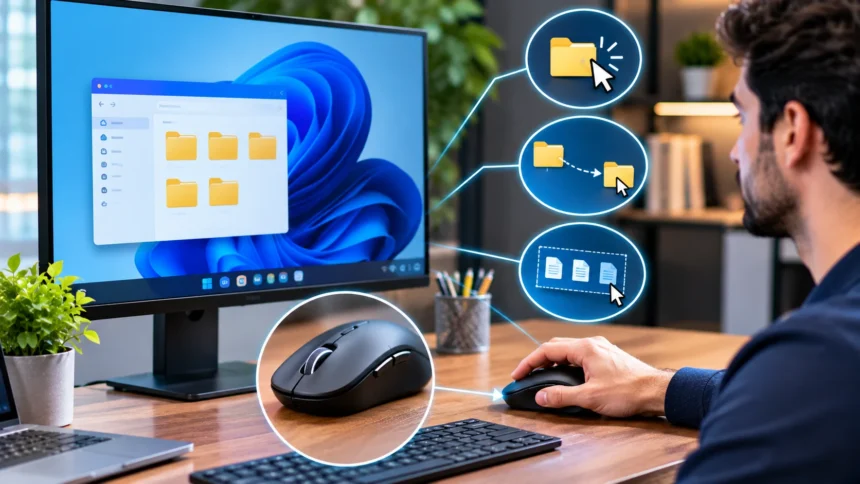
A computer mouse is one of the most common input devices used with desktop computers and laptops. It helps users control the pointer, select items, open applications, and interact with digital content. From browsing websites to editing documents, the mouse makes everyday computer tasks easier, faster, and more convenient.
Understanding the mouse definition in computer technology is important for beginners learning basic computer skills. Although modern computers offer touchscreens and other control methods, the mouse remains a useful tool for accurate navigation. This guide explains what a computer mouse is, how it works, its main parts, different types, and practical examples of everyday use.
What Is a Computer Mouse? Simple Definition
A computer mouse is a handheld input device that allows users to control a pointer on a computer screen. It detects movement across a surface and translates that movement into actions on the display. Users can move the pointer, click buttons, select objects, and interact with applications without typing commands for every action.
The mouse is called a pointing device because its main purpose is to control the position of the on-screen pointer. Most computer mice have two primary buttons and a scroll wheel between them. These controls allow users to perform common tasks such as opening files, selecting text, navigating websites, and accessing different software features.
For example, imagine you want to open a folder containing your school assignments or office documents. You move the mouse until the pointer reaches the folder icon and double-click to open it. This simple action demonstrates how the computer mouse connects physical hand movements with instructions that the operating system understands and performs.
How Does a Computer Mouse Work?
A modern computer mouse works by detecting movement and sending information to the connected computer. Most models use optical or laser-based sensor technology to track changes in the surface beneath the device. As you move the mouse across your desk, the sensor measures movement and sends signals that control the pointer on your screen.
When you press a mouse button, a small internal switch detects the action and sends a corresponding input signal. The computer interprets that signal according to the active application and the location of the pointer. For example, clicking a website link may open another page, while clicking a document icon may select that file.
The mouse communicates with the computer through a wired connection or wireless technology such as Bluetooth or a USB receiver. The operating system processes the movement and button information to perform the requested actions. This entire process happens quickly, allowing users to interact with digital content smoothly and with very little noticeable delay.
Main Parts of a Computer Mouse and Their Functions
The left button is usually the most frequently used part of a computer mouse. It allows users to select files, activate buttons, place the text cursor, and open applications through double-clicking. For example, clicking a document selects it, while double-clicking the same document generally opens it in the program associated with that file.
The right button provides access to additional options through a context menu. Depending on the selected item, this menu may contain commands such as copy, paste, rename, delete, or view properties. The scroll wheel, positioned between the two main buttons, helps users move through long webpages, documents, and lists without dragging the scrollbar manually.
Inside the mouse, a tracking sensor detects movement, while electronic components process button presses and communicate with the computer. Some models also include side buttons, adjustable sensitivity settings, or rechargeable batteries. The outer shell provides a comfortable gripping surface, helping users control the device during ordinary computer activities and tasks requiring accurate pointer movement.
Basic Mouse Actions With Simple Examples
Clicking is the basic mouse action used to select an object or activate a command. To perform a left-click, position the pointer over the desired item and press the left mouse button once. For example, clicking the search box on a website allows you to place the text cursor inside it before entering your search.
Double-clicking means pressing the left mouse button twice quickly without moving the pointer significantly between presses. This action commonly opens folders, documents, and desktop applications on many operating systems. For example, double-clicking a folder icon in Windows usually opens that folder and displays the files stored inside it for easy access.
Dragging and dropping involves holding down a mouse button while moving the pointer to another location. You can use this action to move desktop icons, rearrange files, or select a block of text. Scrolling and right-clicking are also important actions because they help users navigate content and access additional commands without opening separate menus.
Different Types of Computer Mice Explained
An optical mouse uses a light source and an image sensor to detect movement across a surface. This type is widely used because it provides reliable tracking on many ordinary desk surfaces. Optical mice are suitable for browsing, studying, office tasks, and general computing, although very reflective or transparent surfaces can sometimes affect tracking accuracy.
A laser mouse uses laser illumination to help track movement, and some models perform well on a wider range of surfaces. A gaming mouse may include adjustable sensitivity, additional buttons, and a high-performance tracking sensor. These features can support gaming and other activities where users want precise movement, quick responses, or customizable controls.
Other options include trackball mice, vertical mice, and compact travel mice. A trackball lets users move the pointer by rotating a ball while the device remains stationary. Vertical designs position the hand differently from traditional mice, while compact models prioritize portability for people who frequently use laptops outside their usual workspace.
Wired vs. Wireless Mouse: What Is the Difference?
A wired mouse connects directly to a computer through a cable, usually using a USB connection. It generally receives power from the computer, so users do not need to replace or recharge batteries. Wired models are often affordable, easy to install, and dependable for everyday tasks, making them practical for classrooms, offices, and home computers.
A wireless mouse communicates with the computer without a traditional connecting cable. Some models use Bluetooth, while others use a small USB receiver that communicates over a wireless radio connection. This design reduces cable clutter and makes the mouse convenient to carry, especially for laptop users working in different locations throughout the day.
Both wired and wireless mice can provide accurate tracking and responsive performance when properly designed and configured. Wireless models require batteries or charging, while wired models remain physically connected to the computer. The better option depends on personal preferences, available connections, portability requirements, and whether you prefer a cable-free workspace or simpler power management.
Common Uses of a Mouse in Everyday Computing
Computer mice are widely used for office activities such as creating documents, managing spreadsheets, and preparing presentations. Employees can select text, adjust formatting, navigate application menus, and move information between files. For example, a worker preparing a report may use the mouse to highlight a paragraph, insert a table, and organize information visually.
Students also use a computer mouse for online learning, educational activities, and research assignments. It helps them open learning platforms, interact with lessons, organize folders, and navigate digital textbooks. A student creating a classroom presentation can use the mouse to arrange pictures, resize objects, and move between slides while preparing the final project.
A mouse is especially useful in creative applications such as photo editing, graphic design, and video production. Designers can select tools, adjust shapes, and interact with detailed software interfaces. Although professionals sometimes prefer drawing tablets or specialized input devices, a standard mouse remains suitable for many editing tasks, basic illustrations, and routine creative work.
Computer Mouse vs. Touchpad and Other Pointing Devices
A computer mouse and a laptop touchpad perform similar functions, but they use different methods to control the pointer. A mouse tracks the movement of a separate physical device across a surface. A touchpad detects finger movements on a built-in touch-sensitive panel, making it convenient when a laptop is used without additional accessories.
A touchscreen offers another method of interacting with a computer by allowing users to touch items directly on the display. This can feel natural for selecting large buttons, scrolling webpages, or using touch-friendly applications. However, a mouse may offer greater comfort and precision for tasks involving small interface elements or repeated pointer movements.
Graphics tablets, trackballs, and specialized accessibility devices provide additional alternatives for computer navigation. Each device supports different movement patterns and user preferences. Choosing between them depends on the tasks being performed, the amount of workspace available, comfort requirements, and whether the computer is primarily used at a desk or while traveling.
How to Choose the Right Computer Mouse
When choosing a computer mouse, begin by considering how you use your computer throughout the day. A basic optical mouse may be sufficient for studying, internet browsing, and ordinary office activities. Users who spend long hours editing documents, working with detailed graphics, or gaming may benefit from additional buttons, adjustable sensitivity, or a different shape.
Comfort is another important factor because people have different hand sizes and gripping preferences. Look for a mouse that allows your hand to rest comfortably without requiring awkward finger movements. If possible, test several designs before purchasing, since an expensive model does not automatically provide better comfort or control for every user.
Connection type, compatibility, and power requirements should also influence your decision. Check whether your computer supports the mouse’s USB connector, Bluetooth connection, or required receiver. Consider battery life, rechargeable options, warranty coverage, and replacement costs as well, particularly when purchasing equipment for a classroom, office, or frequently used home workstation.
How to Use a Computer Mouse Comfortably
Using a computer mouse comfortably begins with arranging your desk and sitting position. Keep the device close enough that you do not need to reach forward repeatedly, and allow your shoulder to remain relaxed. Your forearm should have comfortable support, while your hand should move naturally without excessive pressure on the mouse or unnecessary tension in your fingers.
Adjusting pointer speed can also make mouse navigation easier and more comfortable. A pointer that moves too slowly may require repeated hand movements, while an overly sensitive setting can make precise clicking difficult. Experiment with your computer’s mouse settings until you find a balance that allows accurate selection without making ordinary tasks unnecessarily tiring.
Regular movement breaks are helpful when working at a computer for extended periods. Changing your position, relaxing your hands, and alternating between mouse and keyboard controls can reduce continuous repetitive activity. If you experience persistent discomfort, consider reviewing your workstation setup and seeking professional advice rather than assuming a particular mouse design will solve every problem.
Common Computer Mouse Problems and Simple Fixes
One common mouse problem occurs when the pointer stops moving or responds inconsistently. For a wired mouse, check that the cable is connected securely and inspect the device for visible damage. If you use a wireless mouse, verify that it has sufficient battery power, its receiver is connected, or its Bluetooth connection remains active.
Another common issue involves unexpected pointer movement, delayed clicks, or a scroll wheel that does not respond properly. Dust, unsuitable surfaces, outdated software, or incorrect settings can contribute to these problems. Try cleaning the mouse gently, using a suitable mouse pad, restarting the computer, or reviewing the operating system’s pointer and scrolling settings.
If the mouse still does not work, test it with another compatible computer or try a different mouse with your current system. This comparison can help determine whether the problem involves the mouse itself or the computer’s connection and software. When the device has physical damage or repeated hardware failures, replacing it may be more practical than attempting repairs.
Conclusion
A computer mouse is a useful input device that makes interacting with digital technology simple and convenient. It allows users to control the on-screen pointer, open applications, select objects, and complete many everyday computing tasks. Understanding the mouse definition in computer technology provides a foundation for learning how modern computer systems respond to user instructions.
Different types of mice offer features designed for everyday activities, professional work, gaming, and portable computing. Wired and wireless models each have practical advantages, while optical sensors, adjustable controls, and alternative designs support different preferences. Choosing the right device involves considering compatibility, comfort, performance, and the activities you perform most frequently.
Learning basic mouse actions such as clicking, double-clicking, scrolling, and dragging can improve computer confidence and efficiency. Proper setup and simple maintenance can also help the device perform reliably over time. Whether you are a beginner, student, or office worker, knowing how to use a computer mouse makes everyday digital tasks easier to manage.
FAQs
What is a mouse in a computer?
A mouse is an input device used to control the pointer on a computer screen. It allows users to select items, open applications, click buttons, scroll pages, and interact with software.
What are the main functions of a computer mouse?
The main functions include pointing, clicking, double-clicking, right-clicking, scrolling, and dragging objects. These actions help users navigate operating systems, manage files, and interact with different computer applications.
What are the different types of computer mice?
Common types include optical, laser, wired, wireless, gaming, vertical, and trackball mice. Each design offers different features depending on user preferences, computer compatibility, and the tasks being performed.
Is a computer mouse an input or output device?
A computer mouse is an input device because it sends movement and button instructions to the computer. The computer processes these instructions and displays the corresponding actions on the screen.
Can a computer work without a mouse?
Yes, computers can work without a mouse by using keyboards, touchpads, touchscreens, or accessibility devices. However, a mouse often makes pointing, selecting objects, and navigating graphical interfaces easier.