
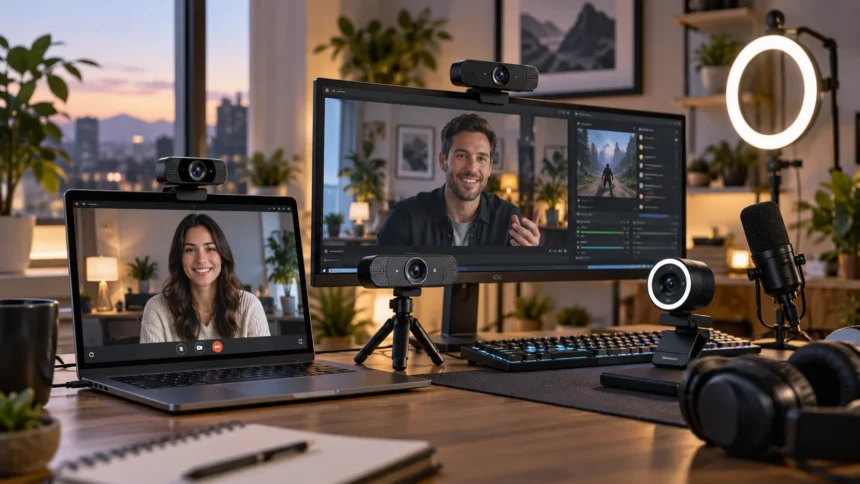
A good webcam can make an immediate difference to how professional, clear, and engaging you appear online. Whether you spend your day on Zoom meetings, teach online classes, record tutorials, or stream games, built-in laptop cameras often struggle with detail, lighting, and framing. A dedicated webcam can provide sharper video, better exposure, smoother motion, and greater control.
The best webcams for video calls and streaming are not necessarily the models with the highest resolution. Autofocus, sensor quality, low-light performance, frame rate, field of view, software controls, and microphone quality all influence the experience. Streamers may prioritize smooth 60fps video, while professionals often value dependable autofocus and natural-looking exposure.
Current options range from straightforward plug-and-play webcams to advanced 4K cameras with AI tracking and automatic framing. Logitech, Elgato, and Insta360 offer particularly useful options for different types of users. Understanding what each feature actually does can help you avoid paying for specifications that provide little benefit to your daily calls or streams.
What Makes a Webcam Good for Calls and Streaming?
Image quality begins with the camera sensor rather than resolution alone. A larger or better-quality sensor can capture more useful visual information, helping faces appear clearer and improving performance in challenging lighting. Resolution still matters, but excellent 1080p video can sometimes look better than poorly processed 4K footage from a weaker camera.
Frame rate is equally important when movement is involved. Thirty frames per second is generally adequate for meetings and ordinary video calls, while 60fps creates smoother motion for streaming, presentations, demonstrations, and energetic on-camera content. The higher frame rate can make hand gestures and body movement look more natural when your streaming platform supports it.
Autofocus, exposure, white balance, and field of view complete the core experience. Good autofocus keeps your face sharp when you move closer or farther from the camera, while proper exposure prevents bright windows or dark rooms from ruining the image. A flexible field of view lets you show only yourself or include more of your desk and surroundings.
Logitech Brio for Professional Video Calls
The Logitech Brio remains a strong choice for professionals who want a versatile webcam capable of handling high-resolution meetings and recordings. It offers 4K video at 30fps, 1080p at up to 60fps, autofocus, and several field-of-view options. This flexibility makes it practical for individual calls, presentations, interviews, and professional home-office setups.
A major advantage is the ability to choose between resolution and motion smoothness. You can use 4K when maximum detail matters or switch to 1080p60 when smoother movement is more useful. The adjustable field of view also makes it easier to frame yourself tightly for meetings or show more of the room during demonstrations.
The Brio also includes built-in microphones, making it usable without an external audio setup for ordinary conferencing. However, professionals recording important presentations or streaming regularly may still benefit from a dedicated USB microphone. Its overall combination of image quality, autofocus, flexible framing, and broad conferencing usefulness makes it a practical premium option.
Elgato Facecam MK.2 for Streaming
The Elgato Facecam MK.2 is aimed more directly at streamers and creators who value smooth 1080p video and extensive camera control. It supports 1080p at up to 60fps and uses a Sony STARVIS sensor alongside Elgato’s Camera Hub software. Its fixed-focus design works particularly well when you remain within a consistent desk-based recording position.
Streamers often benefit more from dependable 1080p60 than from 4K resolution because the webcam usually appears in a smaller portion of the final stream. Smooth motion, controlled exposure, and consistent colors can therefore matter more than extremely high pixel counts. Elgato’s software also provides manual controls that appeal to creators who prefer adjusting their own image.
One point to remember is that the Facecam MK.2 does not rely on autofocus. That can actually be useful for stationary streaming because the camera will not repeatedly hunt for focus when objects pass through the frame. Users who frequently move toward and away from the camera may prefer an autofocus model instead.
Insta360 Link 2 for AI Tracking and Presentations
The Insta360 Link 2 is particularly useful for presenters, teachers, creators, and professionals who move around while speaking. It supports video up to 4K at 30fps and 1080p at 60fps, while its two-axis gimbal enables automatic subject tracking. This allows the camera to physically follow movement rather than depending entirely on digital cropping.
Autofocus also makes it practical for demonstrations where you hold objects closer to the lens. The camera supports focus from close distances through to more typical presentation ranges, helping maintain clarity when switching between your face and something you are showing. AI noise reduction and specialized presentation features further support teaching and business use.
The Link 2 may be more advanced than necessary for someone who sits perfectly still during occasional video calls. For instructors, livestream hosts, product demonstrators, and presenters, however, automatic tracking can be genuinely useful. It reduces the need to manually reposition the camera whenever you stand, move sideways, or step away from your desk.
1080p vs. 4K: Which Webcam Resolution Is Better?
A 1080p webcam is sufficient for most video meetings because conferencing platforms often compress video before other participants see it. A high-quality 1080p camera with good lighting can therefore produce a professional image without requiring 4K. It also uses less bandwidth and processing power, which may benefit older computers or less reliable internet connections.
A 4K webcam provides additional detail for content creation, recorded tutorials, cropping, and professional presentations. The extra resolution lets you digitally reframe footage while retaining more image information. It is particularly useful when webcam footage will become a larger part of a recorded video rather than appearing as a small window beside shared content.
Do not choose resolution without considering frame rate. Some webcams provide 4K only at 30fps but can deliver 1080p at 60fps. For a relatively stationary business call, 4K30 may look excellent, while streamers and presenters with frequent movement may prefer the smoother appearance of 1080p60.
Why Autofocus and Framing Matter
Autofocus allows the camera to continuously adjust focus as your position changes. This is helpful if you lean forward during meetings, move around during presentations, or hold products and documents toward the lens. Poor autofocus can become distracting when the camera repeatedly searches for the correct focus instead of keeping your face consistently sharp.
Fixed-focus webcams can still produce excellent video when used within their intended distance range. A streamer who remains seated in almost exactly the same position may actually appreciate the consistency of fixed focus. There is no risk of the image suddenly shifting focus because a microphone, hand, or other object temporarily moves in front of the camera.
Automatic framing goes one step further by adjusting the composition around your position. AI-enabled webcams may digitally crop the image or physically move a gimbal to keep you centered. This can be particularly valuable for teaching, exercise demonstrations, standing presentations, and any situation where you do not remain directly in front of your monitor.
Low-Light Performance Can Matter More Than Resolution
Poor lighting can make an expensive webcam look disappointing. Small camera sensors need enough light to produce a clean image, and dark environments can introduce noise, washed-out colors, or blurred detail. Before spending heavily on a new camera, consider whether your existing setup would improve simply by placing a light source in front of you.
A window can provide excellent natural lighting during the day, although direct sunlight may create harsh shadows. At night, a small LED key light or soft desk light positioned near the monitor can dramatically improve facial clarity. Lighting should generally illuminate your face from the front or slightly to one side rather than coming entirely from behind you.
HDR and automatic exposure features can help when lighting conditions are difficult, but software cannot completely replace good illumination. If you frequently stream in darker rooms, prioritize a webcam known for strong sensor performance rather than simply choosing the highest resolution available. Better light can often create a bigger visual upgrade than moving from 1080p to 4K.
Built-In Microphones vs. Dedicated Audio
Many webcams include one or more microphones, making them convenient for meetings when you want a simple plug-and-play setup. Built-in microphones can work reasonably well when you sit close to the camera in a quiet room. They are particularly useful for occasional video calls where setting up separate audio equipment would create unnecessary complexity.
Streaming creates higher expectations for sound quality. Viewers will often tolerate slightly imperfect video more easily than distracting echoes, keyboard noise, or unclear speech. A dedicated USB microphone positioned closer to your mouth can provide fuller, clearer audio while reducing the impact of room acoustics and the distance between you and the webcam.
Headsets are another practical option for calls because the microphone remains close to your mouth as you move. They also prevent meeting audio from being picked up again by speakers and creating feedback. Choose your audio setup according to your environment rather than assuming the microphone built into a premium webcam will automatically deliver studio-quality sound.
Streaming Webcams vs. Business Webcams
Business webcams usually prioritize simple setup, reliable autofocus, natural exposure, privacy features, and compatibility with popular conferencing software. Professionals generally want to connect the camera and begin a meeting without spending several minutes adjusting technical settings. Built-in microphones and flexible field-of-view controls can also make office-focused webcams more convenient.
Streaming webcams tend to emphasize 60fps video, manual exposure controls, mounting flexibility, software integration, and predictable image characteristics. Streamers often use separate microphones and lighting, so built-in audio may matter less. They may also prefer cameras that save manual settings instead of automatically changing exposure whenever the scene becomes brighter or darker.
The categories increasingly overlap, which is good news for buyers. A strong streaming webcam can handle Teams or Zoom calls, while a premium business webcam can often produce excellent livestream footage. Choose according to your most demanding use case rather than purchasing two separate cameras unless your professional and streaming requirements are dramatically different.
How Internet Quality Affects Video Calls and Streaming
Even the best webcam cannot compensate for an unstable internet connection. Video conferencing and livestreaming require your computer to continuously upload video data, and inconsistent upload speeds can cause pixelation, freezing, or dropped frames. A wired Ethernet connection can provide additional reliability when your Wi-Fi network becomes congested or inconsistent.
Streaming generally requires more planning because you may be sending continuous high-quality video alongside gameplay, screen sharing, or other network traffic. Using an appropriate bitrate and avoiding unnecessary large uploads during a stream can help maintain stability. Businesses supporting many simultaneous users may also use network strategies such as load balancing to distribute traffic and improve service availability.
For ordinary home users, you do not need complex network infrastructure to improve calls. Positioning your router appropriately, using modern Wi-Fi, reducing competing traffic, or connecting through Ethernet may solve many problems. If your webcam image looks sharp locally but blurry to other participants, bandwidth or conferencing compression may be responsible rather than the camera.
How to Set Up a Webcam for Better Video Quality
Position your webcam roughly around eye level whenever possible. A camera placed far below your face can create an unflattering upward angle, while one positioned excessively high may feel unnatural. Using a monitor mount, laptop stand, tripod, or small camera arm can help create a more balanced framing without forcing you to change your sitting position.
Leave a reasonable amount of space between your head and the top of the frame while keeping your eyes around the upper portion of the image. Avoid sitting directly against a wall if possible because some depth behind you can create a more natural background. A clean, uncluttered environment also helps keep attention on you rather than distracting objects.
Finally, adjust exposure and white balance before important calls or streams. Automatic settings work well for many people, but manually controlling them can create more consistent results when lighting does not change. Clean the lens occasionally as well, because fingerprints and dust can soften the image enough to make an otherwise excellent webcam appear noticeably worse.
Conclusion
The best webcams for video calls and streaming depend on whether you prioritize professional meetings, content creation, movement tracking, or smooth 60fps video. Logitech’s Brio is a versatile choice for high-quality professional calls, while Elgato’s Facecam MK.2 is especially suited to stationary streaming setups. Insta360’s Link 2 stands out when intelligent tracking and movement are important.
Do not focus entirely on resolution. Sensor quality, autofocus, low-light performance, frame rate, field of view, software controls, and mounting flexibility can have a greater effect on everyday video quality. A good 1080p60 webcam with proper lighting may deliver a better experience than a poorly configured 4K model in a dark room.
Your surrounding setup matters just as much as the camera. Good lighting, clear audio, stable internet, appropriate positioning, and a clean background can make ordinary webcam footage look significantly more professional. Choose a camera that fits your actual calling or streaming routine, then optimize the environment around it for the best results.
FAQs
Is 1080p enough for video calls and streaming?
Yes. High-quality 1080p is sufficient for most conferencing and streaming situations, especially because platforms often compress video. Streamers may particularly benefit from 1080p60 when smoother motion matters more than 4K detail.
Is a 4K webcam worth buying?
A 4K webcam can be worthwhile for professional recordings, content creation, digital cropping, and high-detail presentations. For basic meetings, a good 1080p webcam with proper lighting is often more than sufficient.
Do I need autofocus on a webcam?
Autofocus is useful when you move or show objects close to the camera. Fixed focus can work very well for streamers and professionals who remain at a consistent distance throughout their sessions.
Do webcams have good built-in microphones?
Some webcam microphones are perfectly adequate for casual calls, but dedicated USB microphones or quality headsets usually provide better voice clarity for streaming, podcasts, presentations, and frequent professional meetings.
What is the best frame rate for a webcam?
Thirty frames per second is generally enough for normal meetings, while 60fps creates smoother movement for gaming streams, demonstrations, and presentations. Your platform and computer must also support the selected frame rate.