

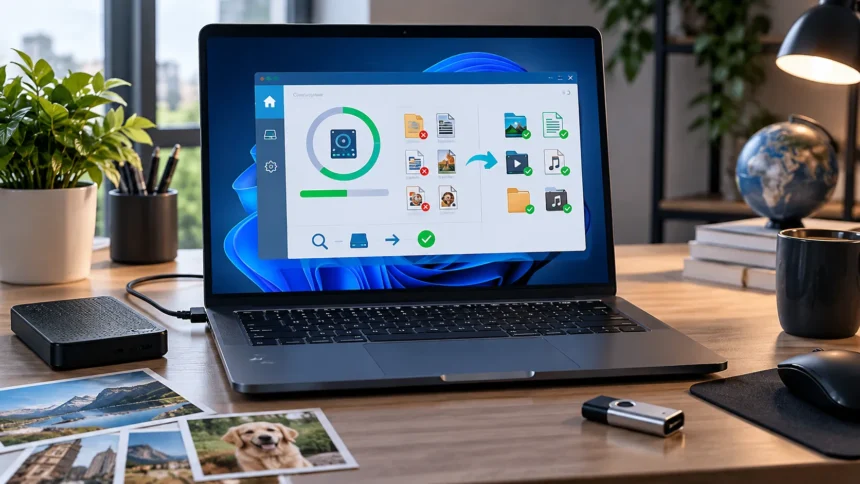
Accidentally deleting an important document, formatting the wrong drive, or discovering missing photos can be stressful. Fortunately, file recovery software can sometimes locate data that Windows no longer displays normally. These tools scan hard drives, SSDs, USB drives, memory cards, and other storage devices for recoverable files before their underlying data is permanently overwritten.
The best file recovery software for Windows depends on how the data disappeared and how comfortable you are with technical tools. Some programs provide simple interfaces designed for everyday users, while others offer deeper scans, disk imaging, partition recovery, RAID support, and advanced controls intended for IT professionals or experienced users.
No recovery program can guarantee that every deleted file will return intact. Recovery chances usually decrease as the affected drive continues being used because new information may overwrite deleted data. The safest approach is to stop writing to the affected storage device as quickly as possible and choose recovery software that matches your particular situation.
1. Recuva for Simple Deleted File Recovery
Recuva is a straightforward Windows recovery tool for people who accidentally delete files and want an uncomplicated way to search for them. It can recover documents, photos, videos, music, emails, and other file types from Windows computers and rewritable storage such as memory cards, USB drives, and external hard drives. A free version is available for basic recovery.
The software also provides a deeper scanning mode for files that are harder to locate. This can be useful when a normal scan fails to find what you need or when a drive has been formatted. Recuva can also search damaged or newly formatted drives, although actual recovery success still depends heavily on whether the original file data remains intact.
Recuva is best suited to everyday recovery situations where simplicity matters more than highly advanced forensic capabilities. Someone who accidentally emptied the Recycle Bin or deleted photos from a memory card may find it easier to use than professional recovery utilities. For heavily damaged storage, missing partitions, or complicated RAID configurations, a more advanced tool may provide greater control.
2. EaseUS Data Recovery Wizard for Beginners
EaseUS Data Recovery Wizard is designed around an accessible recovery process that can work well for people without extensive technical experience. Its Windows version can scan PCs, laptops, hard drives, USB storage, SD cards, and other supported devices. The software supports Windows 11 and a range of older Windows and Windows Server versions.
The interface guides users through selecting a storage location, scanning for lost files, reviewing results, and recovering selected items. It can be useful after accidental deletion, formatting, or other common logical data-loss situations. EaseUS specifically recommends installing the recovery program somewhere other than the drive containing the missing information to reduce the risk of overwriting recoverable data.
EaseUS may be a good choice when you want more guidance than command-line recovery tools provide. Previewing discovered files can also help determine whether paying for additional recovery capacity is worthwhile before committing. As with any recovery program, save restored files to a different drive instead of writing them back onto the storage device currently being scanned.
3. Disk Drill for an Easy Visual Recovery Experience
Disk Drill offers a polished Windows interface designed to make file recovery approachable for less technical users while still providing useful recovery features. It can scan internal drives, external disks, memory cards, USB devices, and other supported storage. The Windows edition can locate photos, videos, Office documents, archives, and many other types of deleted information.
One useful feature is the ability to preview discovered files before recovering them. Disk Drill also provides recovery-chance information and byte-level backup functionality, which can be valuable when working with storage that may be unstable. Its Windows free edition currently allows a limited amount of recovered data, making it possible to evaluate results before deciding whether additional recovery is necessary.
Disk Drill is particularly suitable for users who value a visual interface and do not want to memorize commands. Filters can make large scan results easier to navigate when thousands of deleted items are discovered. Advanced users dealing with specialized filesystems or highly damaged disks may still prefer a professional utility that provides more granular control over the recovery process.
4. Stellar Data Recovery for Common Windows Data Loss
Stellar Data Recovery for Windows focuses on recovering documents, photos, videos, and other information lost through deletion, formatting, corruption, and related logical problems. The software can scan different storage devices and lets users preview recoverable data before completing restoration. This can help determine whether important files are still recognizable before purchasing a full recovery option.
Its interface is designed for people who prefer a guided process rather than a technical disk-recovery environment. Users can select what types of data they want to locate and choose the drive or storage location that needs scanning. This approach can be useful when you know exactly which photos, documents, videos, or other categories of information have disappeared.
Stellar is worth considering when usability is a priority but you still want a dedicated Windows recovery product. It can suit home users, professionals, and small businesses facing accidental data loss. More complicated failures involving physically damaged drives should generally be treated differently, because repeatedly scanning failing hardware can sometimes make professional recovery more difficult.
5. R-Studio for Advanced and Professional Recovery
R-Studio is a considerably more advanced recovery option designed for users who need deeper control over disks, partitions, filesystems, and recovery scenarios. It supports Windows and can work with multiple filesystem types, including common Windows formats and several formats associated with Linux and macOS. It also provides disk imaging, advanced recovery algorithms, and RAID-related capabilities.
The program can recover from local disks, removable storage, damaged or deleted partitions, and certain network-connected systems. Its extensive controls make it attractive to IT professionals and experienced users who understand disk structures and want to configure recovery parameters carefully. R-Studio also offers emergency startup options for situations where the normal operating system cannot boot properly.
R-Studio can feel intimidating if you simply deleted one Word document yesterday. Its real strength appears in more complicated cases where basic consumer recovery tools provide insufficient control. Users should still work cautiously, preferably creating an image of questionable storage before performing extensive recovery operations when the condition of the original drive creates additional risk.
6. Windows File Recovery for a Free Microsoft Option
Windows File Recovery is Microsoft’s command-line utility for attempting to restore files that cannot be recovered through the Recycle Bin or available backups. It can work with internal storage, external drives, and USB devices on supported Windows systems. Microsoft provides Regular and Extensive modes for different deletion, formatting, filesystem, and corruption situations.
The major disadvantage for beginners is that Windows File Recovery does not provide the familiar graphical interface found in most commercial recovery programs. Users enter commands specifying the source drive, destination drive, recovery mode, and optional filters. The source and destination must be different drives, which helps prevent recovered information from overwriting data that might still be recoverable.
This tool can be excellent for technically comfortable Windows users who want to try a free solution before purchasing commercial software. It is particularly useful when you know the approximate location, filename, or file extension you are trying to recover. Beginners who find command syntax confusing will probably have a better experience with a visual recovery application.
7. TestDisk and PhotoRec for Free Open-Source Recovery
TestDisk and PhotoRec are free, open-source recovery utilities that approach data loss in complementary ways. TestDisk can help recover lost partitions, repair certain filesystem problems, and undelete files from supported filesystems. PhotoRec instead performs file carving based on recognizable file signatures, allowing it to recover data even when filesystem structures are badly damaged.
PhotoRec can recover photos, documents, videos, archives, and other supported file types from hard drives, memory cards, USB devices, and similar storage. Because it searches underlying data rather than relying entirely on the filesystem, it can sometimes find files where conventional recovery approaches struggle. The tradeoff is that original filenames and folder structures may not always be preserved.
These utilities are especially useful for technically confident users who want powerful recovery capabilities without purchasing commercial software. TestDisk can be invaluable when a partition disappears, while PhotoRec is useful when individual files need to be carved from damaged storage. Their interfaces are less beginner-friendly than many paid alternatives, so carefully reading the documentation is important.
8. MiniTool Power Data Recovery for Straightforward Windows Recovery
MiniTool Power Data Recovery provides another beginner-friendly option for recovering deleted or lost Windows files. It supports internal computer storage as well as external hard drives, SSDs, USB drives, SD cards, memory cards, and other compatible devices. The software is designed around scanning a selected location, previewing results, and choosing the information you want to restore.
A free edition is available and currently allows recovery of a limited amount of data, making it suitable for smaller recovery jobs or evaluating whether important files can be located. Paid editions remove recovery limits and provide additional functionality depending on the selected license. This tiered model can be convenient when you do not immediately know how much recoverable data remains.
MiniTool is most suitable for users who want a graphical recovery application without dealing with complex commands. It can handle everyday deletion, drive, and storage problems while keeping the recovery process relatively approachable. For advanced partition reconstruction, network recovery, or professional forensic work, specialized software such as R-Studio or TestDisk may provide stronger technical capabilities.
9. How to Choose the Best File Recovery Software
Start by identifying what actually happened to your files. A recently deleted document requires a different recovery approach from a corrupted partition, formatted external drive, missing SD card photos, or failing hard disk. Basic deleted-file tools can handle many everyday situations, while advanced disk problems may require deeper scanning, partition recovery, imaging, or professional assistance.
Consider ease of use, supported storage devices, filesystem compatibility, preview functionality, free recovery limits, and whether the software can create disk images. Privacy should matter as well because recovery programs may scan storage containing personal or confidential information. Understanding how everyday apps handle user data can also encourage better privacy awareness when choosing software that accesses sensitive files.
Avoid downloading several recovery programs onto the same affected drive while testing options. Every new installation can write information to storage space that may contain deleted files. When possible, install recovery software on another drive or computer and restore recovered information to separate storage rather than returning it immediately to the source device.
10. What to Do Before Recovering Deleted Files
Stop using the affected drive as soon as you realize important data is missing. Deleted files often remain physically present until the storage space containing them is reused. Continued browsing, downloading, installing software, copying files, or performing updates can therefore reduce recovery chances because Windows may write new information over sectors containing deleted data.
If the drive is making unusual clicking sounds, disconnecting repeatedly, disappearing from Windows, or showing other signs of physical failure, avoid repeatedly running intensive scans. Software recovery is primarily designed for logical data loss, not damaged hardware. Valuable business documents or irreplaceable personal files may justify contacting a professional recovery service before the physical condition deteriorates further.
SSD recovery can also be more difficult because modern solid-state storage may automatically clear deleted blocks through technologies such as TRIM. Recovery therefore cannot be guaranteed even immediately after deletion. The most reliable protection is maintaining separate backups so recovery software becomes a last resort rather than the only way to restore important information.
Conclusion
The best file recovery software for Windows includes Recuva, EaseUS Data Recovery Wizard, Disk Drill, Stellar Data Recovery, R-Studio, Windows File Recovery, TestDisk with PhotoRec, and MiniTool Power Data Recovery. Each tool serves a different type of user, ranging from beginners recovering recently deleted files to professionals dealing with complicated disks and partitions.
For straightforward accidental deletion, beginner-friendly tools such as Recuva, EaseUS, Disk Drill, Stellar, or MiniTool can make the process easier. More experienced users may prefer Windows File Recovery, TestDisk, PhotoRec, or R-Studio when they need command-line control, filesystem recovery, disk imaging, partition reconstruction, or other advanced recovery capabilities.
Whatever software you choose, the most important step is acting carefully after data loss occurs. Stop using the affected storage, avoid writing recovered files back to the same drive, and do not assume any recovery program can restore overwritten information. Regular backups remain the most dependable way to protect important Windows files from permanent loss.
FAQs
What is the best file recovery software for Windows?
Recuva, EaseUS Data Recovery Wizard, Disk Drill, Stellar, MiniTool, and R-Studio are useful Windows options. The best choice depends on whether you prioritize simplicity, free recovery, damaged-drive support, or advanced technical controls.
Can permanently deleted files be recovered on Windows?
Sometimes. A permanently deleted file may remain recoverable until its storage space is overwritten. Recovery chances depend on the storage type, how much the device has been used afterward, and whether the original data remains intact.
What is the best free file recovery software?
Recuva, Windows File Recovery, TestDisk, and PhotoRec provide useful free recovery options. Some commercial programs also offer free recovery allowances, although the permitted amount of restored data may be limited.
Can file recovery software recover data from an SSD?
Sometimes, but SSD recovery can be difficult because TRIM and other storage-management processes may clear deleted data. Recovery success varies considerably depending on the SSD, operating system behavior, timing, and how the data was lost.
Should I recover files to the same drive?
No. Recover files to a different drive whenever possible. Saving restored data onto the affected storage can overwrite other deleted information that has not yet been recovered, reducing the chances of successfully restoring additional files.