

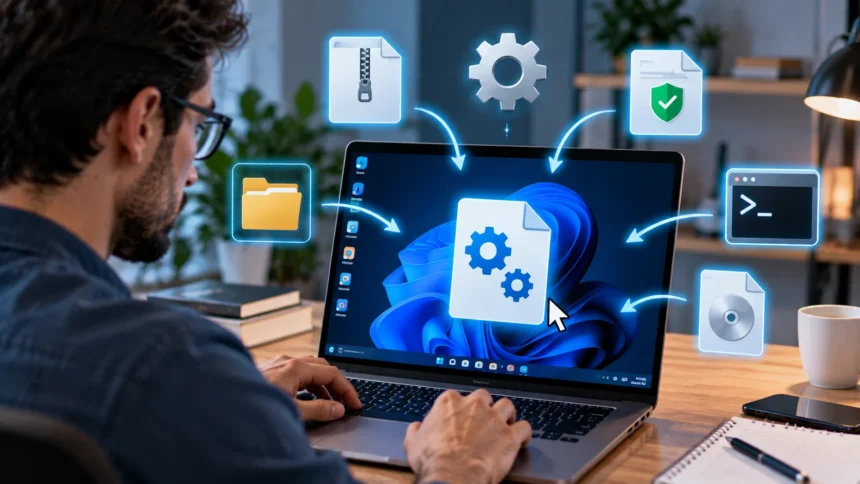
What Does EXE Mean? Executable Files Explained
If you use a Windows computer, you have probably seen files ending in .exe, especially when installing software, launching programs, or downloading applications. EXE stands for executable, which means the file contains instructions a computer can run as a program. When you double-click a legitimate EXE file, Windows loads its instructions and starts the associated application or installation process. Programs such as web browsers, games, productivity tools, utilities, and software installers often rely on executable files. Although EXE files are a normal and essential part of Windows, they deserve more attention than ordinary documents because executable code can make changes to your system.
An EXE file is different from a photo, text document, or video because those files normally contain information that another program must open. A JPEG image needs an image viewer, while a DOCX file needs compatible document software. An executable file, by contrast, contains code designed to perform operations when the operating system runs it. Those operations might display a user interface, calculate information, communicate with online services, install other files, or control hardware-related functions. The exact behavior depends on how the program was created. This ability to perform actions makes EXE files extremely useful, but it is also why untrusted executable files can pose security risks.
Microsoft Windows is strongly associated with the .exe file extension, although executable programs exist on every major operating system. Different operating systems use different executable formats and conventions. Windows commonly uses EXE files for applications, installers, utilities, and system components. You may encounter filenames such as setup.exe, installer.exe, or the executable name of a particular application. Many of these files work quietly in the background, while others open visible windows and menus. Users therefore interact with executable files frequently without necessarily realizing it because desktop shortcuts and Start menu entries often launch an EXE file stored elsewhere on the computer.
Understanding what EXE means is particularly important when downloading software from the internet. A legitimate executable from a trusted software company may be completely safe, while a malicious EXE can contain malware designed to steal information, damage files, install unwanted programs, or gain unauthorized access to a computer. The filename alone cannot prove whether an executable is trustworthy. Attackers may intentionally give malicious files believable names to make them look harmless. Checking the download source, digital signature, security warnings, and antivirus scan results can reduce risk. A cautious approach is especially important when an executable arrives unexpectedly through email, messaging services, file-sharing platforms, or unfamiliar websites.
This guide explains what an EXE file is, how executable files work, how to open them safely, and how they differ from other common file types. It also covers what happens when Windows runs an executable, why some EXE files require administrator permission, and why these files are commonly used by both legitimate software developers and cybercriminals. You do not need programming experience to understand the basics. Once you know what executable files do, many everyday Windows behaviors become easier to understand. More importantly, you can make better decisions about which programs to run, which security warnings to take seriously, and which suspicious downloads are best left unopened.
What Does EXE Mean?
EXE is short for executable file, a type of computer file designed to contain instructions that can be executed by an operating system. On Windows, these files usually use the .exe extension so the operating system recognizes them as applications or executable programs. When a user launches an EXE file, Windows reads information stored inside it and begins loading the program into memory. The file may contain machine code, resources, configuration information, icons, and other components needed for the application to work. In simple terms, an EXE is a file that tells the computer to perform a particular set of programmed actions.
The term executable describes what the file can do rather than the specific purpose of the software. A small calculator utility can be an executable, but so can a large video game containing millions of instructions. Installation programs, maintenance tools, system utilities, and commercial desktop applications may all use EXE files. Some executables display a graphical interface, while others operate through a command-line window or run quietly in the background. Windows itself includes numerous executable files that support everyday operating system functions. This means seeing an EXE file does not automatically indicate anything unusual or dangerous because executable programs are fundamental to how Windows computers operate.
File extensions help Windows determine how different files should be handled. When the system sees .exe, it recognizes that the file may contain instructions to run rather than content to open inside another application. That is different from extensions such as .jpg, .mp3, .pdf, or .txt, which generally represent data consumed by another program. Double-clicking a PDF usually launches a PDF reader, whereas double-clicking an EXE starts the executable itself. This distinction is important for security because running a program gives it the opportunity to perform actions. Depending on its permissions, those actions may affect files, network connections, settings, or other parts of the system.
Not every executable file needs to be manually opened by the user. Many applications automatically start other executables when they perform certain functions. Background services, update tools, launchers, drivers, and scheduled tasks can all involve executable components. The Windows operating system also runs multiple EXE processes during normal operation. You can often see them listed in Task Manager, where executable process names help identify which programs are currently active. Some may be familiar applications, while others belong to Windows or installed software. Their presence is generally normal, although unfamiliar processes sometimes deserve investigation if the computer is behaving unexpectedly.
The meaning of EXE therefore goes beyond simply “a program you double-click.” It is a standard way Windows packages code that can be loaded and executed. Developers use executable files to distribute software because the format can contain both program instructions and supporting information required by the operating system. Users encounter these files during installation, troubleshooting, gaming, office work, system administration, and countless other activities. Understanding this basic role makes it easier to distinguish executable code from ordinary content files. It also explains why Windows may display stronger security warnings before running an EXE downloaded from an unknown or potentially unsafe source.
How Does an EXE File Work?
When you open an EXE file, Windows does not simply display its contents the way a document editor displays text. Instead, the operating system examines the executable’s structure and determines how the program should be loaded into memory. Windows reads important information describing the application’s architecture, required libraries, entry point, and other technical details. It then allocates resources and begins executing the program’s instructions through the computer’s processor. Depending on the software, the program may also load configuration files, connect to databases, open windows, access stored information, or communicate over a network. All of this can happen within moments of launching the executable.
Most modern Windows executable files use a format known as the Portable Executable, often shortened to PE. The format organizes program information into structured sections that Windows can interpret. These sections may contain executable code, application data, imported functions, icons, and other resources. An EXE may also depend on external dynamic link libraries rather than containing every piece of functionality inside one file. When the application starts, Windows can load those required libraries and make their functions available to the program. This modular approach allows developers to reuse common components instead of duplicating the same code inside every executable.
The processor eventually receives low-level machine instructions generated from the program’s source code. Developers generally write software in higher-level programming languages such as C, C++, C#, Rust, or many others rather than manually writing processor instructions. A compiler or related development tool translates the developer’s code into a form that Windows and the processor can execute. The resulting application may then be packaged into an EXE file. This explains why opening an executable is fundamentally different from opening the original source code. The EXE contains a compiled form intended primarily for execution rather than convenient human reading or editing.
Programs often request access to operating system functions while running. An application might ask Windows to display a window, create a file, access a printer, connect to the internet, or allocate additional memory. Windows provides standardized interfaces that allow legitimate programs to perform these tasks without controlling every hardware component directly. Permissions determine which actions are allowed. A normal application may operate with the privileges of the logged-in user, while certain tasks require administrator rights. When software requests elevated access, Windows may display a User Account Control prompt asking whether you want to allow the program to make changes to the device.
When you close an executable application, Windows generally stops its active process and releases the resources it was using. However, some software launches additional background processes that can continue running even after the main window closes. Cloud synchronization apps, security software, messaging tools, and update services frequently behave this way. An EXE may also create files, registry entries, shortcuts, or scheduled tasks during installation or normal operation. Those changes can remain after the executable stops. This persistence is useful for legitimate programs but can also be abused by malware, which is one reason users should run executable files only when they have reasonable confidence in their origin.
What Are EXE Files Used For?
One of the most common uses of EXE files is launching desktop applications. Programs such as web browsers, media players, image editors, accounting tools, development software, and computer games commonly have a main executable file. Desktop shortcuts typically point to this executable rather than containing the program themselves. When you double-click the shortcut, Windows launches the associated EXE from its installation directory. The executable may then load additional files required by the program. Because this process happens automatically, many users can spend years using Windows without directly navigating to the executable files behind their favorite applications.
Software installation is another major use of executable files. When you download Windows software from a developer’s website, you may receive a file named something like setup.exe or install.exe. Running it launches an installer that copies program files, creates shortcuts, configures settings, registers components, and prepares the software for use. Some installers download additional files from the internet during installation instead of including everything in the original package. This approach allows companies to distribute smaller initial downloads. Because installers can make substantial system changes, Windows may require administrator permission before allowing them to proceed, particularly when they install software for multiple users.
Windows itself relies on executable files for many system functions. Task Manager, File Explorer, system utilities, service hosts, and other components ultimately involve executable code. These system EXEs are generally located in protected Windows directories and are digitally signed by Microsoft. Users normally should not delete, rename, or replace them because doing so can break important operating system functionality. Malware sometimes uses filenames similar to legitimate Windows processes in an attempt to avoid detection. For that reason, both the file name and its location matter when investigating suspicious activity. A familiar name stored in an unexpected folder may deserve additional scrutiny.
Executable files are also widely used for utilities that perform specific maintenance or administrative tasks. Hardware manufacturers may provide EXEs for driver installation, firmware updates, diagnostics, or device configuration. Businesses may use specialized executables for inventory systems, security tools, communications software, or internal applications. Developers frequently create command-line executables that perform tasks without a graphical interface. These tools can automate file processing, data conversion, network administration, and software development workflows. Although they may look less polished than normal desktop applications, command-line programs are still executable files and can perform highly sophisticated operations when given appropriate instructions.
Games provide another familiar example of executable software. A PC game generally has a primary EXE that initializes graphics, audio, input devices, game logic, networking, and other components. Launchers from gaming platforms may start the game’s executable automatically, meaning users rarely need to locate it manually. Some games contain multiple EXE files for launchers, crash reporting, configuration tools, servers, or anti-cheat systems. Modding communities may occasionally instruct users to work with particular executable files, but replacing them with unofficial versions can introduce security or compatibility risks. As with any software, downloading game executables from trusted sources is the safer approach.
Are EXE Files Safe?
EXE files are not inherently dangerous. Legitimate software developers, Microsoft, hardware manufacturers, businesses, and millions of ordinary applications rely on executable files every day. The security concern comes from what executable files are capable of doing once they are run. Because an EXE contains program instructions, a malicious developer can create one that performs harmful actions rather than useful ones. Malware delivered through executable files can potentially steal passwords, encrypt documents, install unwanted programs, monitor activity, or provide unauthorized access to a computer. The key question is therefore not whether EXE files are safe as a category, but whether a particular executable can be trusted.
The source of the file is one of the strongest indicators to consider. An installer downloaded directly from the official website of a reputable software vendor is generally more trustworthy than the same application downloaded from an unknown file-sharing site. Search advertisements, fake download buttons, unofficial software mirrors, and misleading websites can sometimes distribute altered installers. Users should verify that they are on the correct website before downloading executable software. Misspelled domains and pages imitating popular brands are common phishing techniques. If you are uncertain where a program came from, searching for the official developer rather than clicking an unexpected download link can reduce unnecessary risk.
Digital signatures provide another useful security signal. Software publishers can digitally sign executable files using certificates that help Windows verify who published the file and whether it was altered after signing. You can often inspect this information through the file’s properties. A valid signature from the expected company can increase confidence, although it does not guarantee that software is completely safe. Unsigned files are also not automatically malicious because independent developers may distribute legitimate unsigned programs. Digital signatures should therefore be considered alongside the download source, reputation, security scan results, and the behavior expected from the program rather than used as the sole decision factor.
Antivirus and built-in Windows security features can help detect known or suspicious executable threats. Windows may display warnings when a downloaded application has an unknown reputation or comes from the internet. These warnings are intended to encourage verification rather than to imply that every unfamiliar program is malware. If security software identifies an EXE as dangerous, avoid bypassing the warning unless you have strong technical evidence that it is a false positive. Uploading sensitive or proprietary files to random online scanning websites can create privacy risks, so users should consider what information the file contains before using third-party services.
Unexpected executable attachments deserve particular caution. Legitimate businesses rarely need to send random EXE files through unsolicited emails or messages, and attackers frequently disguise malicious downloads as invoices, updates, games, utilities, or account documents. If someone sends an executable you were not expecting, verify the request through a trusted communication channel before opening it. Do not rely on the filename or icon because both can be designed to look convincing. Users should also enable file extension visibility in Windows so deceptive names such as invoice.pdf.exe are easier to recognize. A few seconds of verification can prevent a serious security incident.
How to Open an EXE File Safely
On Windows, opening an EXE file normally requires nothing more than double-clicking it. However, the important step comes before execution: verifying that the file is something you actually intended to download or install. Check the filename, download source, publisher, and context in which you received it. If the executable came from a legitimate vendor’s official website and matches the software you requested, the risk is generally lower. If it appeared unexpectedly in an email, messaging app, or unfamiliar download page, do not run it immediately. Treating executable files with deliberate caution is much safer than assuming anything with a professional-looking icon is trustworthy.
You can right-click an executable and inspect its properties before opening it. Depending on the file, Windows may show information about the publisher, product name, version, copyright, and digital signatures. This metadata can help determine whether the file matches the software it claims to represent. A valid digital signature from the expected company is useful, while missing or inconsistent information may justify further investigation. Remember that metadata can sometimes be misleading, so it should not override obvious warning signs. The most reliable assessment combines multiple signals, including the official source, signature, software reputation, and current security scans.
Keeping Windows and your security software updated provides additional protection when running downloaded applications. Updated systems receive fixes for known vulnerabilities, while security tools receive newer threat-detection information. Windows security features can also inspect downloaded programs and warn about suspicious or low-reputation applications. Do not automatically disable these protections because a website tells you to do so. Malicious download pages commonly instruct users to turn off antivirus software to “fix” installation problems. Legitimate applications may occasionally trigger false positives, but the correct response is to investigate the cause rather than removing important security protections without understanding the risk.
Administrator prompts deserve careful attention. If an EXE asks for permission to make changes to the computer, Windows may display a User Account Control message showing information about the publisher. Installation programs and system utilities legitimately require elevated privileges in many cases, but not every application needs them. Consider whether the requested permission makes sense for the task. A trusted hardware driver installer asking for administrator access is understandable, whereas an unknown image viewer demanding extensive privileges may deserve more scrutiny. Never approve elevation automatically simply because you are accustomed to clicking “Yes” during installations.
For unfamiliar or specialized software, advanced users may choose to test programs in an isolated environment rather than on their main system. Virtual machines and certain sandboxing technologies can reduce exposure by separating the test environment from important personal files and normal applications. However, these methods require technical knowledge and are not a substitute for trustworthy software sourcing. Sophisticated malware may also attempt to escape or detect isolated environments, so no testing technique creates absolute safety. For everyday users, the strongest approach remains simpler: download software from reliable sources, keep systems updated, pay attention to warnings, and avoid running executable files that have no clear legitimate purpose.
EXE vs MSI, DLL, BAT, and Other File Types
EXE and MSI files are both commonly associated with Windows software installation, but they are not identical. An EXE is a general executable program and can perform almost any function its developer designed. An MSI file is a Windows Installer package structured specifically for Microsoft’s installation framework. Some software companies distribute MSI files because they integrate well with centralized deployment and administrative tools, particularly in business environments. Others use EXE installers because they provide more flexibility for custom installation logic. Users may notice little difference during a normal installation because both can ultimately install applications, but the underlying formats and processing methods are different.
A DLL, or dynamic link library, contains reusable program code and resources that other programs can load when needed. Unlike a typical EXE, a DLL is generally not designed to be launched directly by double-clicking it. Applications use libraries to share common functionality instead of including every function inside the main executable. Windows itself relies heavily on DLL files, and many desktop applications install their own libraries. Missing or corrupted DLL files can prevent programs from starting correctly. Downloading individual replacement DLLs from random websites is risky because such files can be modified or malicious, so repairing or reinstalling the original software is usually safer.
BAT files are Windows batch scripts consisting primarily of text-based commands that the command interpreter executes in sequence. They use the .bat extension and are often used to automate repetitive administrative or file-management tasks. Although they are easier for humans to read than compiled EXE files, batch scripts can still perform damaging actions when malicious. A harmful BAT file might delete files, modify settings, or launch other malicious programs. Users should therefore apply similar caution to unfamiliar scripts. The fact that a file is plain text does not make it harmless if Windows will execute the commands contained inside it.
ZIP files are different because they are archives used to package or compress files rather than programs that normally execute directly. A ZIP archive may contain documents, images, folders, EXE installers, scripts, or almost any other file type. Opening a ZIP usually lets you inspect or extract its contents. Security risk appears when a malicious executable or script is hidden inside the archive and the user later runs it. Attackers sometimes use compressed archives because email filters or users may pay less attention to them than direct executable attachments. Always inspect what an archive contains before launching files extracted from an unfamiliar source.
Other executable or script-related formats include CMD, COM, SCR, PowerShell scripts, and application packages. Some formats have specialized purposes, while others are historical or administrative technologies that remain supported by Windows. Malware does not need to use .exe exclusively, which means simply avoiding EXE files does not eliminate security risk. Documents with malicious macros, scripts, shortcut files, and other techniques can also trigger unwanted actions under certain circumstances. A better security habit is to distinguish ordinary content from anything capable of executing commands. Treat unexpected programs, scripts, installers, and active content cautiously regardless of the exact file extension displayed.
Why Some EXE Files Need Administrator Permission
Windows separates normal user permissions from administrator-level privileges to reduce the damage that applications can cause without explicit approval. Many everyday programs can run without administrator access because they only need to work with files and settings belonging to the current user. However, an installer that needs to write into protected system directories, install drivers, modify system-wide settings, or configure services may require elevated privileges. Windows displays a User Account Control prompt before granting those permissions. This gives the user an opportunity to evaluate whether the requested action is expected. The system is designed to prevent software from silently receiving powerful privileges whenever possible.
Administrator rights can allow a program to make changes that affect every user on the computer. An elevated executable may be able to install software into protected locations, modify important registry settings, create system services, manage drivers, or change security-related configuration. These capabilities are necessary for many legitimate administrative tools. They are also extremely valuable to malicious software because greater privileges can provide deeper control over the device. That is why users should not treat a UAC prompt as a meaningless installation step. The prompt is asking whether you trust the application enough to let it make higher-level changes to the system.
Some older applications request administrator privileges even when newer software could perform similar tasks without them. This may happen because the program was designed around older Windows practices or stores information in protected locations. Other applications request elevation only for specific operations, such as installing an update or changing a system-level setting. Modern software design generally favors using the least amount of privilege required. This approach limits the impact of programming errors or security vulnerabilities. If a simple application requests administrator access every time it launches, checking the developer’s documentation or reputation may help determine whether the behavior is legitimate.
Users sometimes try to solve application problems by selecting “Run as administrator.” This can fix certain permission-related issues, but it should not become the default response to every error. Running a program with elevated privileges gives it more power than it would otherwise have, so doing this unnecessarily increases risk. If trusted software requires elevation for a legitimate administrative function, using it may be appropriate. However, an unknown executable should not be granted extra privileges simply because it refuses to work normally. Troubleshooting should first determine why the application needs that access and whether the program itself can be trusted.
Organizations often place additional controls on executable programs because administrator access can affect security across an entire business network. Employees may be prevented from installing software without IT approval, and security teams may restrict which executables are allowed to run. These controls can reduce malware infections, unauthorized applications, and configuration problems. Home users can apply the same principle on a smaller scale by using normal accounts for routine activity and approving elevation only when necessary. Administrator privileges are powerful by design. Treating them as something to grant deliberately rather than automatically makes Windows significantly safer without preventing legitimate software from functioning.
Can EXE Files Run on Mac, Linux, Android, or iPhone?
Windows EXE files are primarily designed for Microsoft Windows and generally cannot run natively on macOS simply by double-clicking them. Macs use different executable formats and operating system technologies, so Windows machine code and application dependencies are not automatically compatible. Some software is available separately for both Windows and macOS, in which case the developer provides different application packages for each platform. Users should download the version designed specifically for their operating system rather than attempting to run the Windows installer. Renaming an EXE file with a Mac-related extension does not convert the application because changing a filename does not change the underlying executable code.
Compatibility tools can sometimes allow selected Windows programs to run on macOS or Linux. Technologies based on compatibility layers can translate or recreate parts of the Windows environment needed by certain applications. Virtual machines provide another option by running a complete Windows installation inside another operating system. These solutions can work well for some programs but may require configuration and a valid Windows license depending on the setup. Compatibility also varies from one application to another, particularly with games, security software, drivers, or programs that rely heavily on Windows-specific features. Native versions remain preferable when developers provide them.
Linux also uses executable programs, but it does not rely on the Windows .exe convention for normal native applications. A Linux executable may have no filename extension at all and instead relies on file permissions and binary format information. Scripts can also be marked executable. Some Windows EXE programs can run on Linux using compatibility software, although results depend on the application’s requirements. Linux distributions generally provide software through package managers or repositories rather than expecting users to download random executables from websites. This distribution model can simplify updates and reduce some software-sourcing risks when official repositories are used.
Android applications are normally distributed using formats such as APK or newer app-bundle-related delivery mechanisms rather than traditional Windows EXE files. An Android phone cannot normally run a Windows executable directly because the operating system, processor architecture, and software environment are different. Some advanced emulation or remote-access approaches can provide access to Windows applications from Android devices, but they do not make an ordinary EXE a native Android app. If a website tells phone users to download an EXE to install an Android application, that should raise questions. Android users should normally obtain apps through reputable stores or trusted developer distribution channels.
iPhones and iPads also do not natively execute Windows EXE files. Apple’s mobile operating systems use their own application formats, code-signing requirements, and distribution systems. A Windows program must generally be specifically developed or ported for Apple’s platforms to run there. Remote desktop services can allow an iPhone to control a Windows computer where the EXE is actually running, but the executable itself remains on the remote Windows machine. Understanding this distinction helps prevent confusion when downloading software. An EXE is not a universal application format; it is closely associated with Windows and requires a compatible environment to operate correctly.
How to Identify a Suspicious EXE File
A suspicious executable often raises concern because of where it came from rather than because of its name. Files received unexpectedly through email, direct messages, random file-sharing links, cracked-software sites, or pop-up advertisements deserve caution. Attackers frequently use urgency or curiosity to convince users to run malicious applications. A file may claim to contain an invoice, shipping notice, game cheat, software update, security fix, or confidential document. If you did not request the file, ask why an executable is necessary before opening it. Ordinary documents such as invoices are rarely distributed as Windows programs, making an unexpected EXE attachment particularly questionable.
The filename can provide clues but should never be trusted by itself. Malicious programs may use names resembling legitimate system components, popular applications, or common documents. Attackers can also take advantage of hidden file extensions so a filename that appears to end in .pdf or .jpg actually ends in .exe. Enabling the Windows option to display known file extensions can make this deception easier to detect. Unusual spelling, random characters, duplicated extensions, or misleading icons should increase suspicion. However, a perfectly normal-looking filename can still belong to malware, so additional verification is always necessary.
File location can also provide context. Legitimate installed applications are often stored in recognized program directories, while Windows system executables generally reside in protected operating system folders. A process using the name of a Windows component but running from a temporary download directory may be suspicious. Task Manager and file properties can sometimes help identify where an active executable is stored. Users should avoid deleting unfamiliar processes immediately because many legitimate background services have technical-looking names. Instead, investigate the publisher, path, digital signature, and connection to installed software before deciding whether something is malicious.
Unexpected behavior after launching an executable is another warning sign. The program may immediately request unusual administrator privileges, disable security software, open unexplained browser windows, install unknown applications, or trigger repeated security alerts. Other possible signs include sudden performance problems, persistent advertising, unexplained network activity, changed browser settings, or files becoming inaccessible. None of these symptoms proves that a particular EXE is responsible because computers can malfunction for many reasons. Still, unusual behavior shortly after running an untrusted download is a strong reason to stop interacting with the program and perform appropriate security checks.
If you believe you accidentally ran a malicious executable, disconnecting the device from sensitive networks may be appropriate while you assess the situation. Run trusted security software, install available security updates, and follow any remediation instructions provided by your antivirus product or IT administrator. If important accounts may have been exposed, changing passwords from a known-clean device can reduce further risk. Businesses should report suspected infections to their security or IT team rather than attempting complicated cleanup independently. Most importantly, do not continue running the suspicious file repeatedly to “see what it does.” Once trust is uncertain, investigation should prioritize protecting data and limiting potential damage.
Frequently Asked Questions About EXE Files
What does EXE stand for?
EXE stands for executable. It is commonly used as the file extension for programs that Windows can run.
What is an EXE file used for?
An EXE file can launch an application, install software, perform system tasks, or run a command-line utility. Its exact purpose depends on the instructions created by the software developer.
Are all EXE files viruses?
No. Most Windows applications rely on legitimate executable files, but malware can also be distributed as EXE files because executables can perform actions on a computer.
Is it safe to open an EXE file?
It can be safe when the file comes from a trusted source and matches software you intentionally downloaded. Unexpected executables from unknown websites, email attachments, or messages should be treated cautiously.
How do I open an EXE file on Windows?
Normally, you can open an EXE by double-clicking it in File Explorer. Before doing so, verify the source and pay attention to Windows security or administrator warnings.
Can I open an EXE file on a Mac?
Windows EXE files generally do not run natively on macOS. Some may work through compatibility software or a Windows virtual machine, while others require a separate Mac version.
What is the difference between EXE and MSI?
EXE is a general executable format that can perform many types of tasks, while MSI is specifically designed for software installation through Windows Installer. Developers may use either format when distributing Windows software.
Why does an EXE file ask for administrator permission?
Some executables need elevated privileges to install software, modify protected system settings, install drivers, or perform administrative tasks. You should approve the request only when you trust the application and expect it to need those permissions.
Can I delete an EXE file?
You can often delete a downloaded installer after the software has been installed, but you should not randomly delete EXE files from application or Windows system folders. Removing an executable that a program depends on may stop the software or operating system feature from working.
How can I tell if an EXE file is malware?
Check where the file came from, its digital signature, publisher information, security scan results, filename, and behavior. No single sign guarantees safety, so suspicious or unexpected executable files are best left unopened until they can be verified.